Deliver, monitor, and report
Use this guide after the exam, examinees, and paper mappings have been prepared. The exact actions available depend on the exam type, plan, role, and current exam state.
Pre-delivery checklist
Select the exam in Manager and verify:
- Visibility: keep the exam invisible until it is ready for examinees.
- Mapped examinees: the roster and paper assignments are complete.
- Time: mapped start times and time zones are correct.
- Result display: decide whether examinees see results after completion or a generic completion message.
- Live proctoring: enable it only when required and staffed.
- Identity verification: verify photos, consent, exemptions, and fallback contacts when the feature is used.
- Devices: decide whether mobile phones or tablets are permitted and which Client layout they should receive.
- Disconnection policy: choose what should happen after repeated save failures or an extended loss of connection.
- Instructions: confirm the exam and paper instructions match the final operating rules.
Client saves exam state periodically while connected. A disconnection prevents new state from reaching the server, so the configured policy and candidate instructions should account for network loss.
Test before publishing
Use a designated test examinee and open Open Exam Link in a private browser window. Test the same path real examinees will use:
- sign in with examinee credentials;
- complete any identity or device checks;
- verify the available papers;
- start and answer a short test paper;
- reconnect after a brief network interruption if practical;
- finish and confirm the completion or result screen; and
- verify the result in Manager.
Do not reuse a real candidate's credentials for testing.
Publish and send the exam
- Toggle the exam to Visible.
- Select Open Exam Link and copy the final link.
- Use Send Email to Examinees when mapped examinees have valid email addresses, or distribute the link through your approved communication system. See Email your examinees for the personalisation placeholders, and for sign-in links that save candidates typing a code and passcode.
Tell examinees the date, time, time zone, link, credential-distribution method, device requirements, proctoring expectations, and support contact. Share the test-day guide.
Monitor an active session
The exam's mapped-examinee table is the monitoring view. It shows each person's connection state and, once they finish, their score.
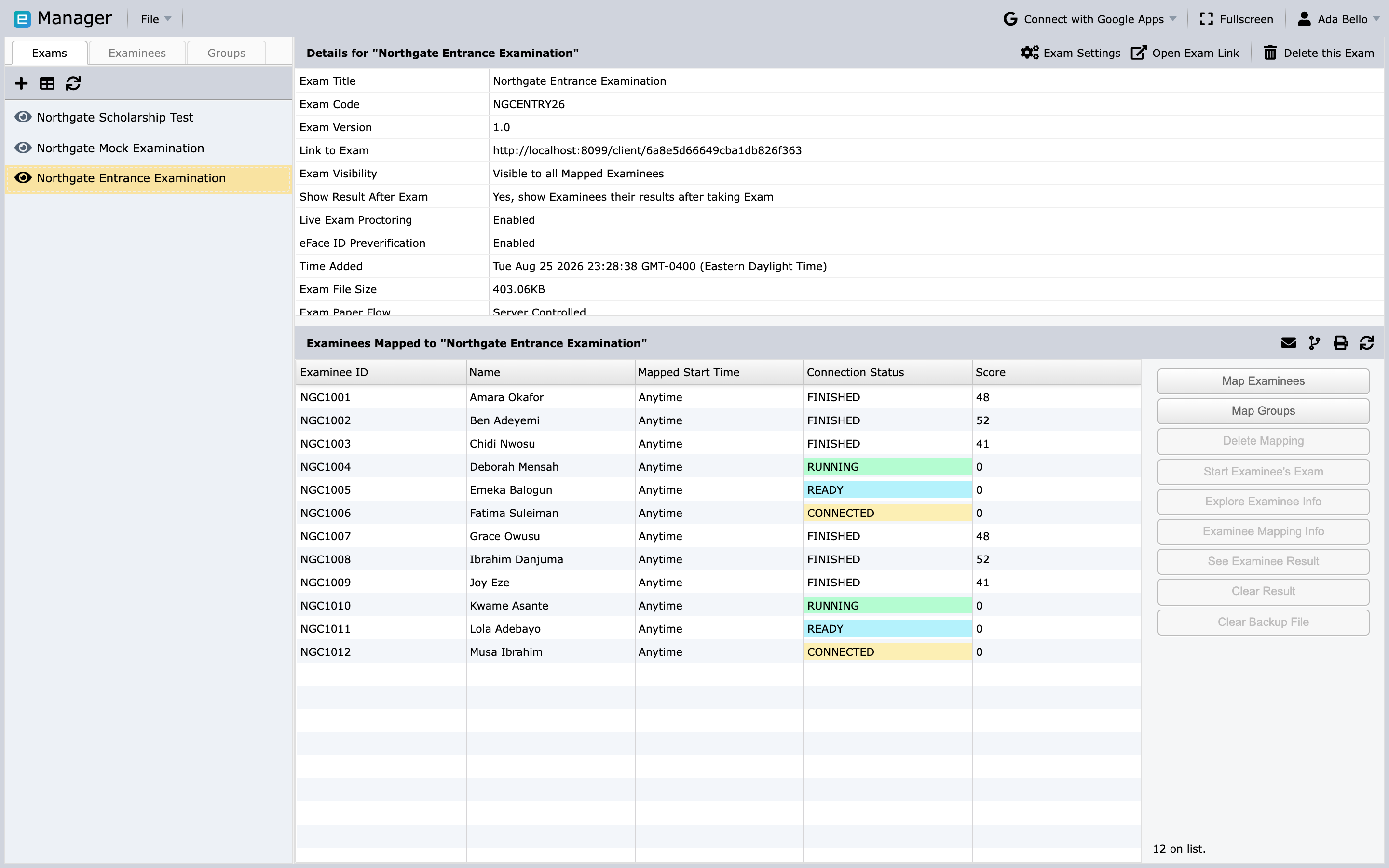
Manager shows mapping and connection states such as Connected, Ready, Running, Disconnected, and Finished, colour-coded so an in-progress sitting can be read at a glance. Refresh the mapping table before making a decision so you have the latest server data.
Depending on the exam configuration, actions may include:
- start or stop an examinee's exam;
- start or stop the exam;
- monitor an examinee or the full exam;
- inspect mapping information; and
- disconnect an examinee from the exam.
If live proctoring is enabled, open the exam under Proctoring from the account sidebar. Invigilators may need to approve an examinee before the exam starts.
Handle common incidents
Examinee cannot see the exam
: Confirm visibility, mapping, selected papers, start time, time zone, and Circle access for the staff member investigating.
Examinee cannot sign in
: Check the exact exam link, code, passcode, exam mapping, and capitalization. Reset or redistribute credentials only through an approved channel.
Connection shows Disconnected
: Ask the examinee to keep the exam page open, restore the network, and follow the reconnection guidance. Refresh Manager before sending start, stop, or disconnect commands.
Proctor cannot see the exam
: Confirm live proctoring is enabled, the invigilator role is correct, and the invigilator has access through the relevant Circle.
Review results
After an examinee finishes, use See Examinee Result for an individual or See Exam Result for the assessment. Results can include:
- questions answered and unanswered;
- skipped questions;
- obtainable and achieved score; and
- percentage score.
Use Generate Report for a broader exam report. Examinees who have not finished may be excluded, so confirm the finished count before treating a report as final.
Corrections and retakes
Clear Result deletes the selected examinee's existing result for that exam and may allow a retake. This action is not reversible. Before using it:
- confirm the correct examinee and exam;
- preserve any required audit or result record;
- record the authorization and reason; and
- verify the new assignment and communication plan.
Use the same care for deleting an exam, examinee, or mapping.