Import existing content
Designer can take content from another Designer project, from an exam already exported for delivery, or from a word-processed document in which the questions are typed out. All three run through the same wizard: choose a file, tell Designer how the document is laid out, then tick what you want. Where you started decides what you are allowed to bring in.
What Designer accepts
A .smexproj project file and a .smex exported exam are read directly, since
their content is already structured. A .txt, .rtf, or .docx document is
read as text, so Designer needs the marker and tags below to find where each
question begins. .doc is not supported: open it in Word and save a .docx.
Files from a newer version will not import
A project or exported exam saved by a later version of the application than the one you are running is refused, with the same message opening it would give: "The file version is greater than the application version". Ask whoever sent it to save from a matching version.
Start an import
- Choose File → Import Exams from another Project to bring whole exams into the open project.
- Right-click an exam in Exam Explorer and choose Import Papers From File to add papers to that exam.
- Right-click a paper and choose Import Questions From File to add questions to that paper.
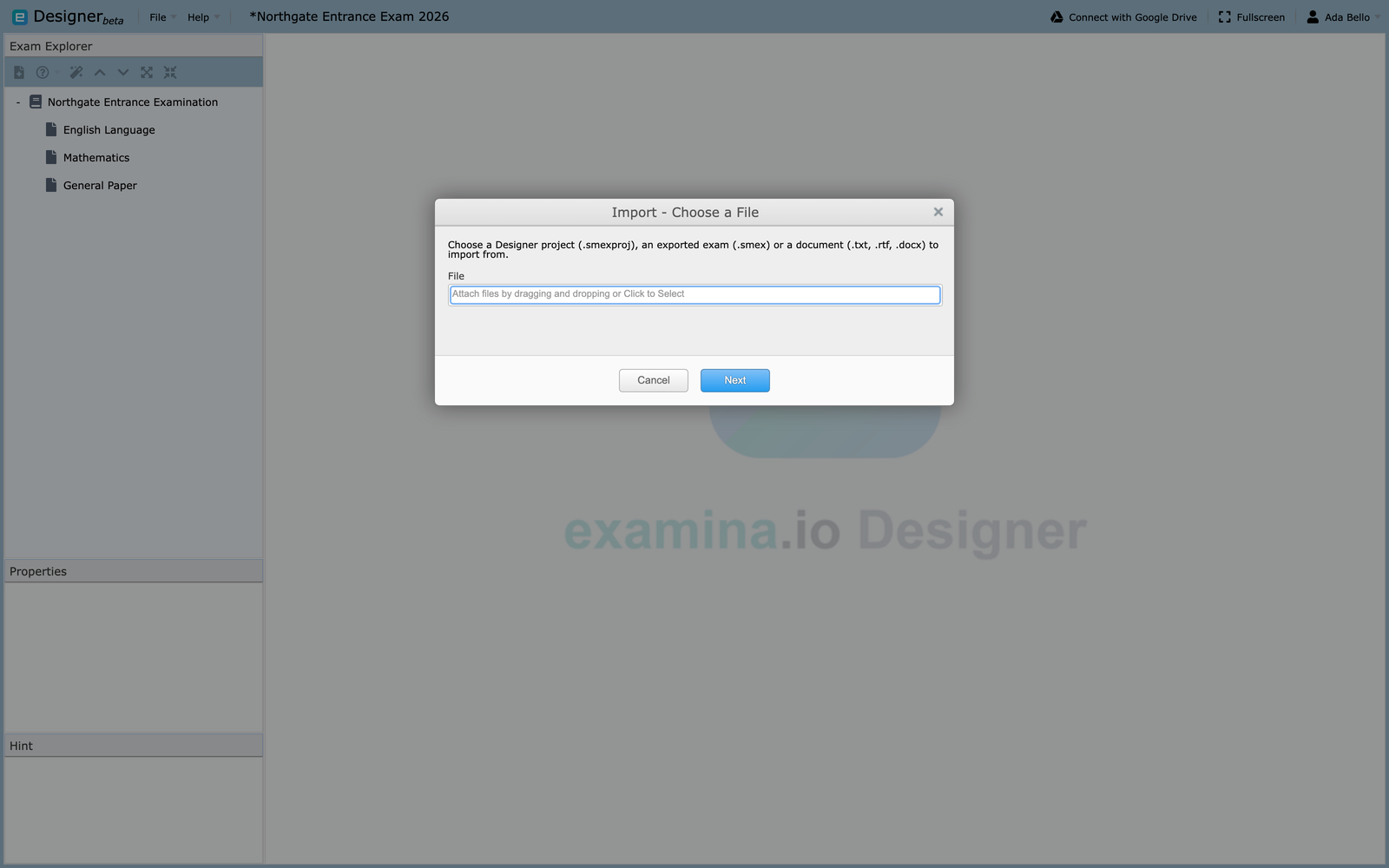
Step 1 asks for the file. Documents go to step 2 next; anything else to step 3.
Tell Designer where each question starts
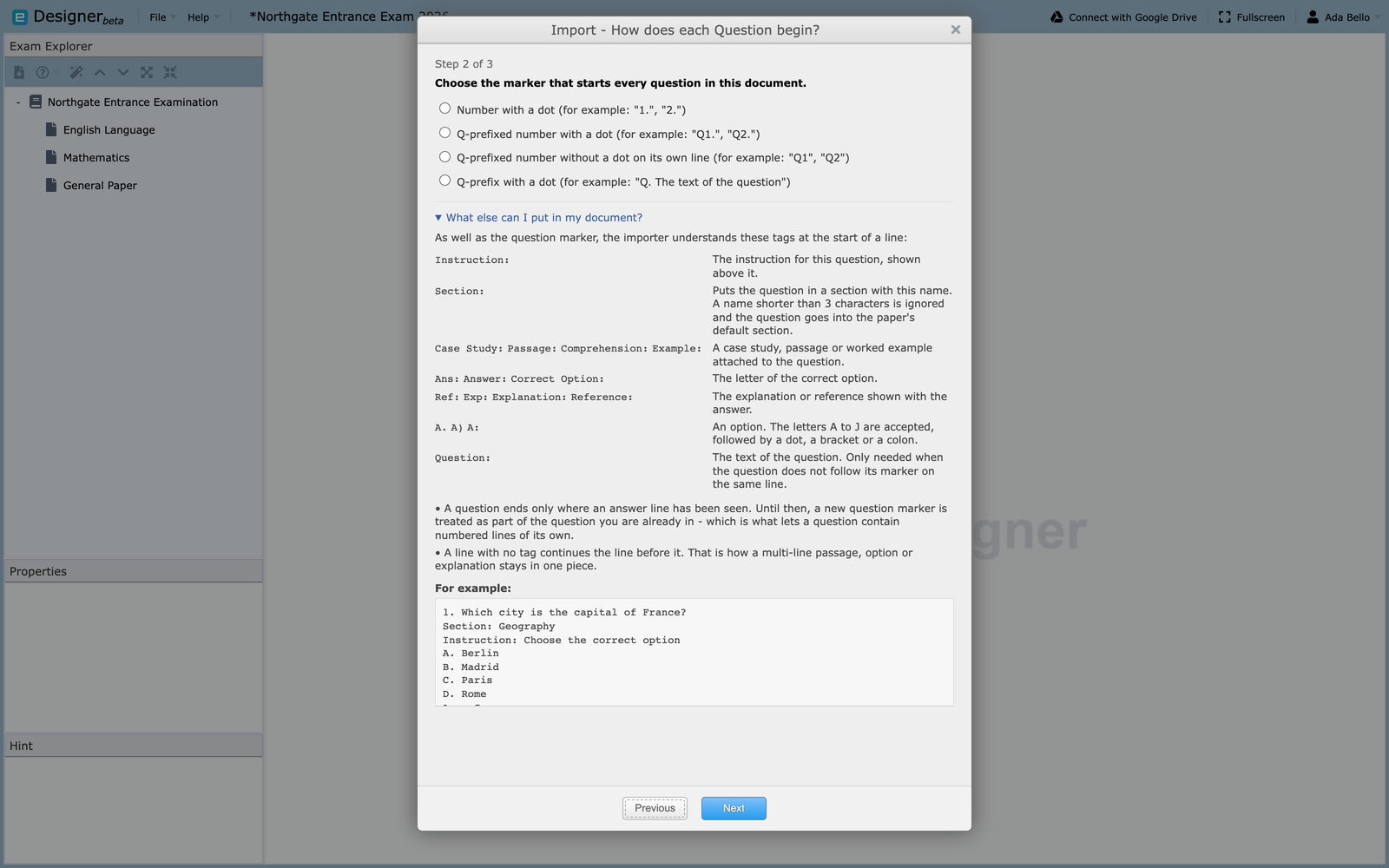
Step 2 appears for documents only. Choose the marker that begins every question
in your file: 1., Q1., Q1 on a line of its own, or Q.. Nothing is
preselected, so pick the one that matches your document. Open What else can
I put in my document? for a reference to the tags, each at a line start.
Tags
Question:
: The question text, needed only when it does not follow the marker.
Instruction:
: The instruction for that question.
Section:
: Puts the question in a named section.
Case Study:, Passage:, Comprehension:, Example:
: A passage attached to the question. The tag you choose is the label shown.
A., A), A:
: An option. Letters A to J are recognized.
Ans:, Answer:, Correct Option:
: The letter of the correct option.
Ref:, Exp:, Explanation:, Reference:
: The explanation shown with the answer.
The cases that catch people out
A question is only finished once an answer line has been seen. That is what
lets a numbered list inside a case study, 1. First point and 2. Second
point, stay in the passage instead of each line starting a question of its
own. A question with no answer line never closes and swallows the ones after
it, so one imported question holding the text of several usually means a
missing Ans: line. A second answer replaces the first; it does not add one.
A line carrying no tag continues the line before it, which is how a multi-line case study stays in one piece, and why a stray note between questions is appended to the line above. Untagged text before any tag becomes the question text, and a later Question: tag overrides it. A Section: name under three characters is ignored and the question lands in the paper's default section. Document import always produces multiple-choice single-select items, so fill in the blank and multiple select must still be authored by hand.
Choose what to import
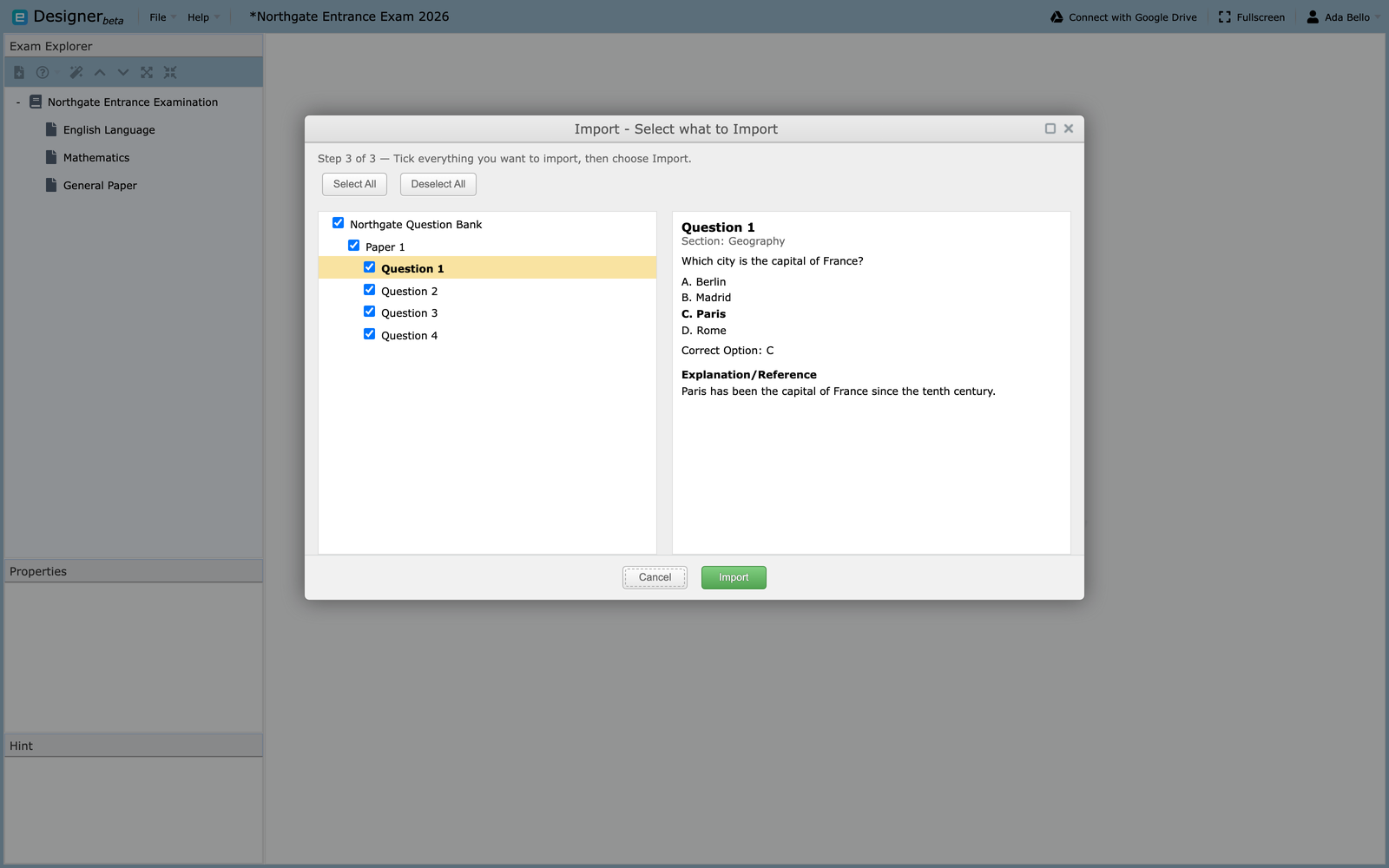
Step 3 shows what Designer found as an Exam → Paper → Question tree.
- Tick the exams, papers, or questions you want.
- Select each one to read it in the preview pane on the right.
- Choose Import.
Only the levels your entry point allows are tickable: importing papers lets you tick papers and questions but not exams; importing questions, only questions.
Images inside a .docx are imported with their questions; any image too large
or in a format Designer cannot display is skipped, counted, and reported when
the import finishes. What arrives is ordinary Designer content, so preview it,
set scores and sections, and save the project.
Download Questions
Download Questions is a separate feature, not part of the import wizard. Right-click a paper and choose it to pull questions from SmartQuestions.
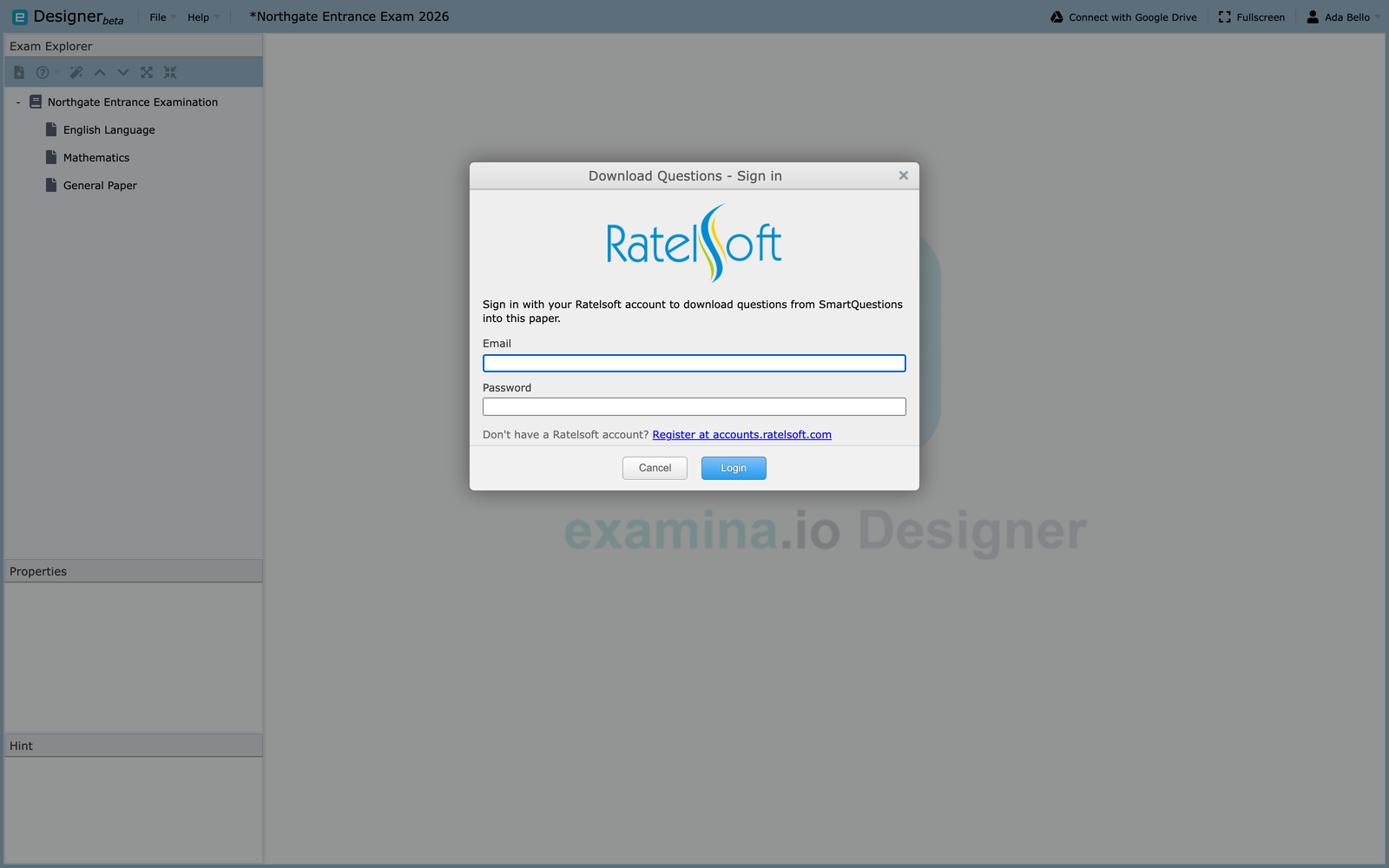
- Sign in with your Ratelsoft account.
- Choose a scheme, then up to five subjects.
- Set how many questions to take from each subject, between 1 and 100.
- Choose sequential or randomized order, then download.
The sign-in is not stored. Designer asks for it again in a new session.
To copy content inside the open project, see Reuse project content.