Customize the exam login page
Root and Administrator accounts can configure an organization-wide login style, logo, and background from Home → Settings. Availability can depend on the organization's plan.
Choose a style
Client provides three styles:
- Default
- Modern
- Classic
Default supports exam-specific branding created in Designer. Modern and Classic use the organization's logo and background image.
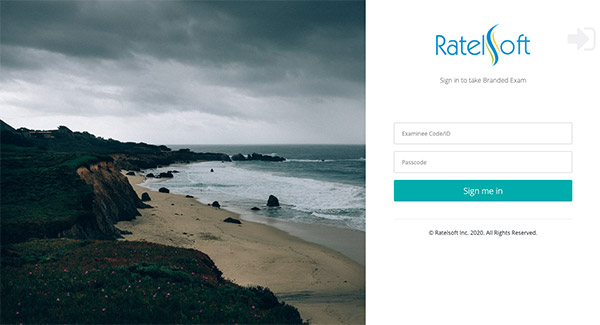
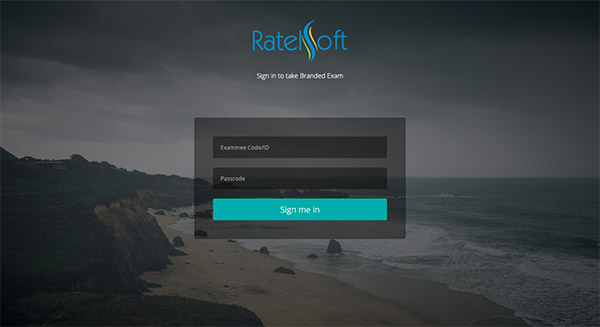
Classic applies a visual treatment over the background to preserve contrast around the login fields. Check the final image in both styles rather than assuming they will look identical.
Upload an organization logo
- Sign in as a Root or Administrator.
- Open Home → Settings.
- In Logo Customization, select Upload New Logo.
- Choose a JPG, GIF, or PNG file no larger than 512 KB.
- Wait for the upload to complete.
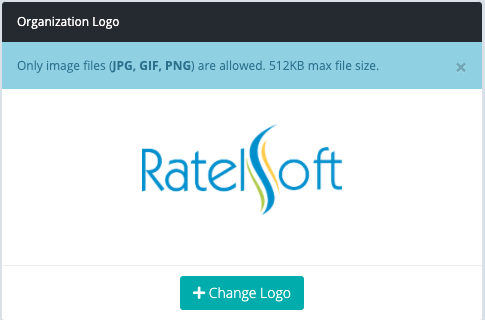
If no logo is set, the organization name can appear in its place. Use a logo with clear padding and enough contrast for both light and photographic backgrounds.
Select a login style
- Find Client Experience.
- Under Exam Login View, choose Default, Modern, or Classic.
- Select Save Style.
The change applies at the organization level. Coordinate it with anyone running an active exam before switching styles.
Upload a background
- Under Login Background Image, select Change Image.
- Choose a JPG, GIF, or PNG file.
- Use the displayed recommended dimensions—1920 × 1280 pixels—and stay within the displayed file-size limit.
- Wait for the upload to finish.
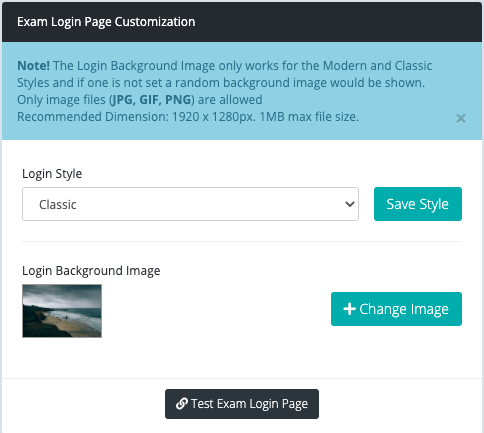
Modern and Classic can use a supplied background when no custom image is set. Select the small preview to inspect the current background at a larger size.
Test the result
If at least one exam is available, select Test Exam Login Page. Check:
- logo size and sharpness;
- text contrast;
- the login form on desktop and mobile widths;
- keyboard focus and field readability;
- loading time on a slower connection; and
- whether the correct organization identity is unmistakable.
Open the test in a private browser window to see the examinee experience without relying on the administrator session.
Image guidance
- Avoid text embedded in the background; it can be cropped or obscured.
- Keep the visual focus away from the login form.
- Compress large photos before upload.
- Use images your organization is permitted to publish.
- Do not place candidate names, exam questions, or other confidential data in branding assets.
For the rest of the organization settings, see Organization settings and branding.