Integrate examina.io with Blackboard Learn Ultra
Connect examina.io to Blackboard Learn Ultra once, then let instructors add a published exam from the Content Market without copying an exam URL. Learners open the assessment inside Blackboard without a second examina.io sign-in, and examina.io can return each result to the matching Blackboard gradebook item.
Validate before a live assessment
Connect and validate the complete workflow in a non-production Blackboard course with fictional users before enabling it for a live assessment.
The screenshots use a fictional course named CHEM 101: General Chemistry, an assessment named General Chemistry Fundamentals, and a fictional learner named Layla Al-Harbi. Your institution, course, users, identifiers, and published exams will be different.
The Blackboard screenshots were captured in Learn Ultra 4000.19.0. A newer release may move an action or slightly change its label, but the LTI 1.3 fields and the order in which the two systems exchange them remain the same.
What the integration provides
- One Blackboard sign-in: learners do not sign in to examina.io again when they open the assessment from their Blackboard course.
- Published-exam selection: LTI Deep Linking lets an instructor choose the exact published exam while adding course content.
- Course-aware placement: the selected exam is bound to the Blackboard course and content item that created it.
- Grade return: LTI Assignment and Grade Services (AGS) sends the score to the correct learner and gradebook item.
- Optional course roster: Names and Roles Provisioning Services (NRPS) can provide the minimum membership data required by an approved workflow.
- Institution isolation: the same vendor Application ID can be installed by multiple institutions, but every Blackboard installation has its own Deployment ID and its own examina.io registration.
Before you start
You need:
- a Root or Administrator account in examina.io;
- a Blackboard Learn system administrator who can register LTI 1.3 tools;
- an instructor and a fictional learner in a non-production Blackboard course;
- at least one exam imported and published in examina.io Manager; and
- institutional approval for the learner data and LTI services Blackboard will share.
Both systems must be reachable over public HTTPS with trusted certificates and accurate clocks. LTI login messages and signed responses expire quickly, so an incorrect clock can reject an otherwise valid configuration.
Use the shared examina.io Application ID
Use the Examina Application ID shown in examina.io. Do not create a separate vendor application for each institution. Each Blackboard installation supplies its own Deployment ID, which must be saved in a separate examina.io registration. Never reuse a Deployment ID from another Blackboard environment.
1. Publish the exam learners will take
Before configuring Blackboard, prepare the assessment in examina.io:
- Open Manager and import the exam from Designer if needed.
- Review its title, instructions, duration, scoring, availability, and learner-facing content.
- Publish the exam.
Only published exams that the current organization is allowed to use appear in the Blackboard selection screen. Publishing an exam does not add it to a course; the instructor selects the course placement later through Deep Linking.
2. Start the Blackboard registration in examina.io
As an examina.io Root or Administrator:
- Open Home → Settings.
- Find Bring Examina into your LMS and select Add registration.
- Choose Blackboard Learn / Ultra.
- Copy the read-only Examina Application ID.
The LMS integration area is near the bottom of Settings. Blackboard Learn / Ultra should show Available, alongside Moodle and Canvas. Select Add registration from this area to begin.
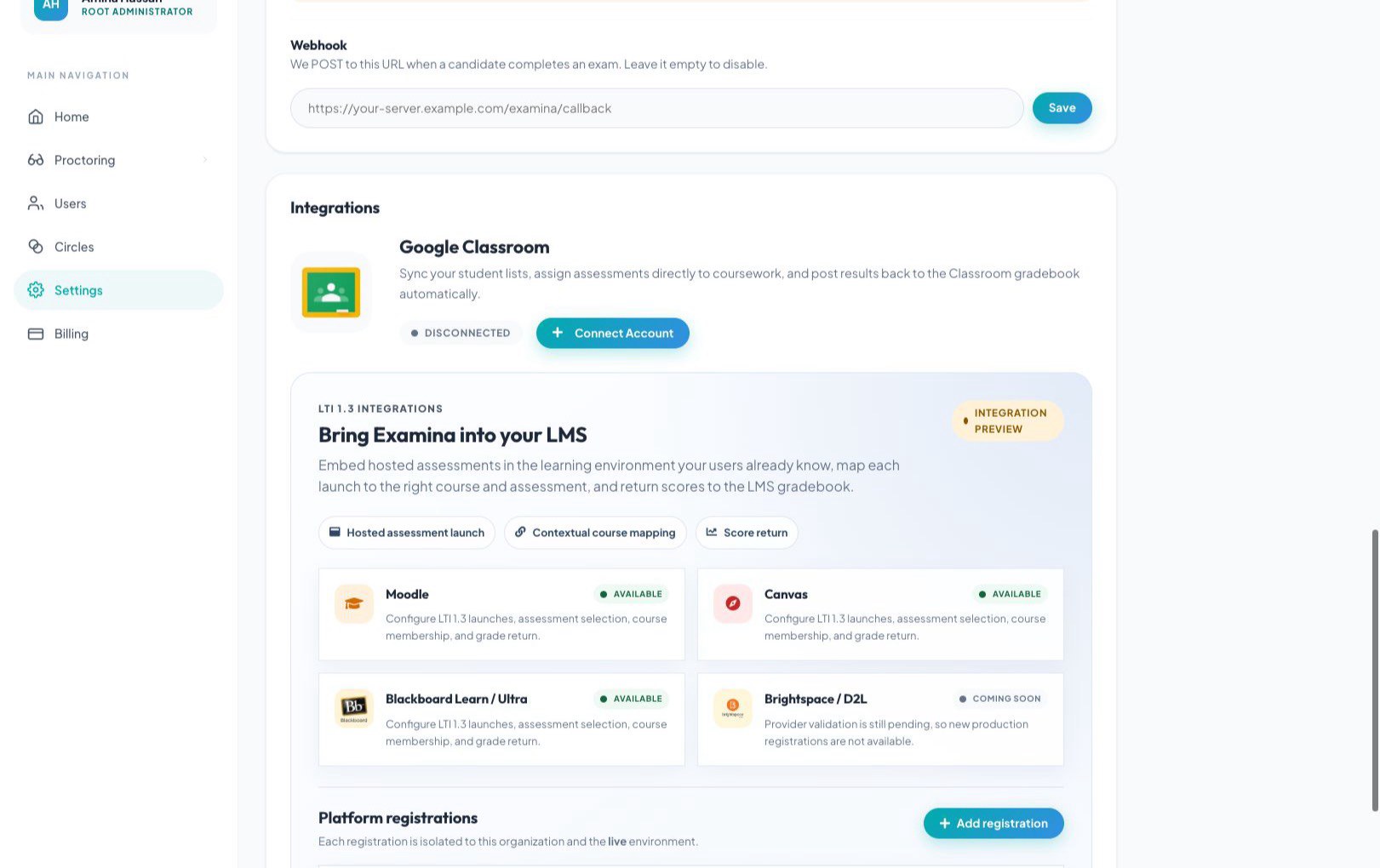
Keep the form open. Blackboard needs the Application ID before it can create the institution-specific Deployment ID that completes this registration.
3. Register and approve examina.io in Blackboard
As a Blackboard Learn system administrator:
- Open the Blackboard administrator area. In Ultra navigation, select System Admin; in Original Experience, open Administrator Panel.
- Find the Integrations section and select LTI Tool Providers.
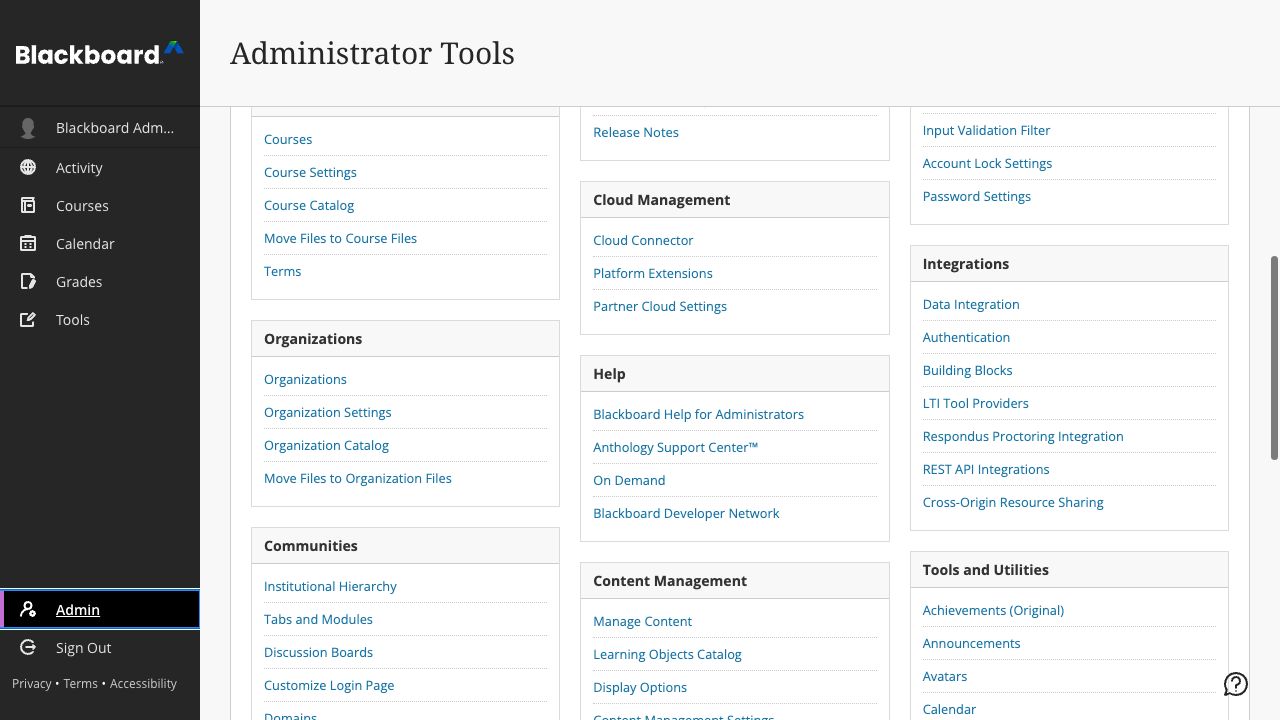
- Select Register LTI 1.3/Advantage Tool.
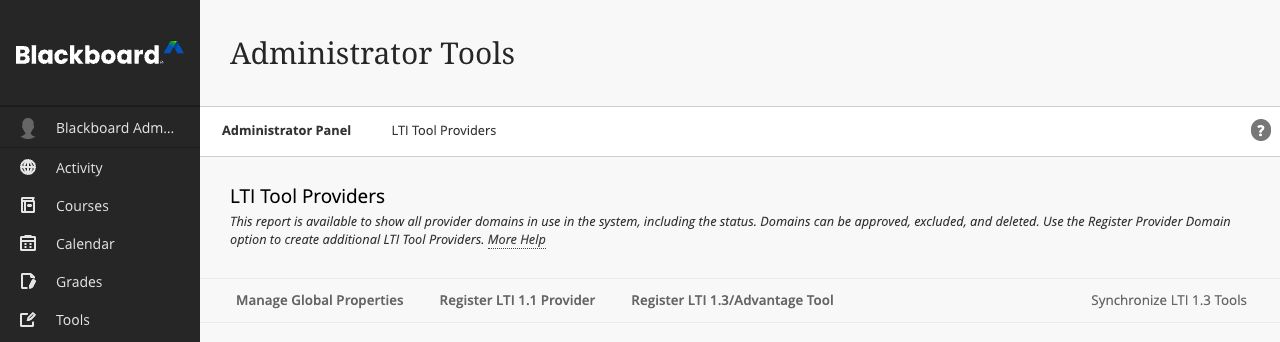
- Enter the Examina Application ID, then select Submit.
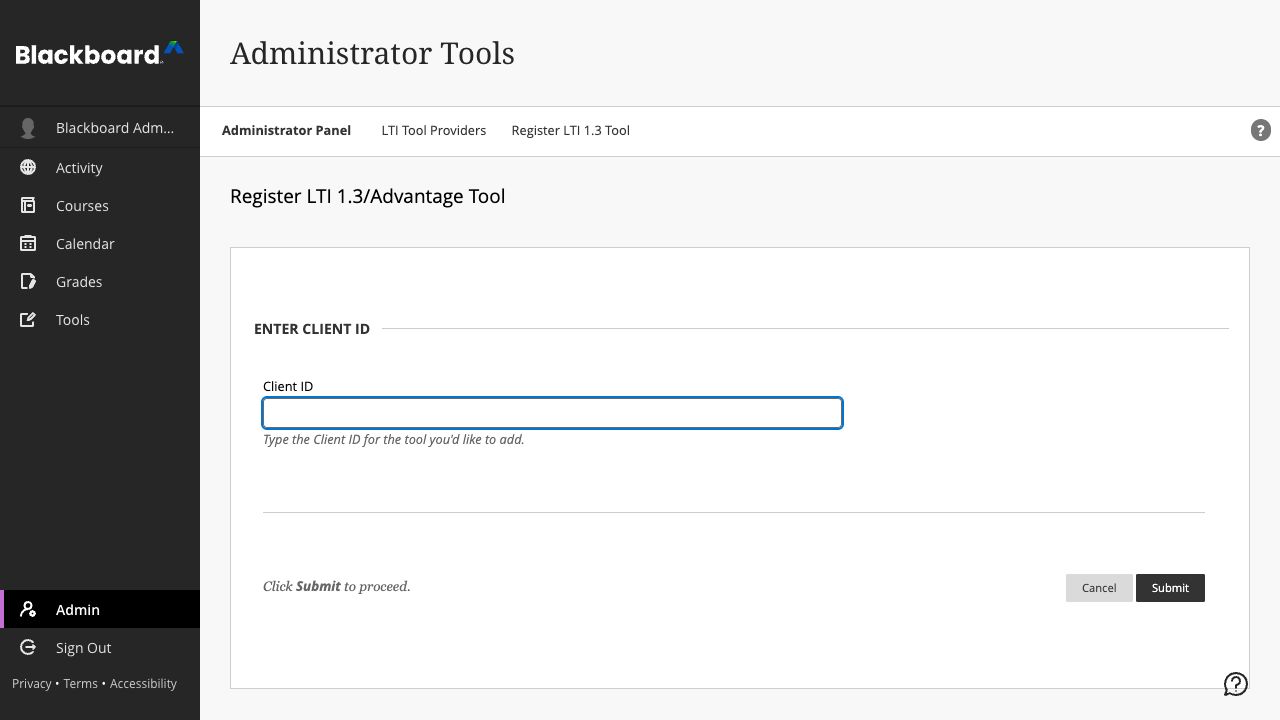
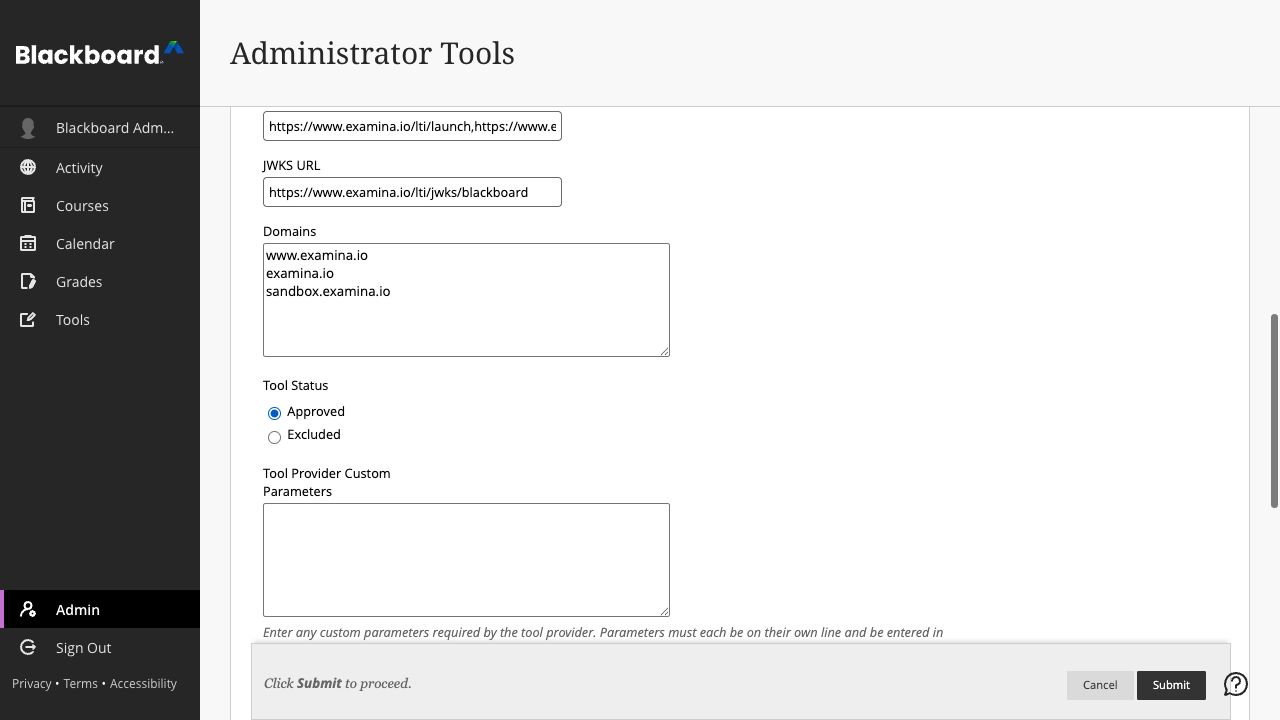
- Review the imported tool name, domain, public-key URL, redirect URLs, and managed placement.
- Set Tool Status to Approved.
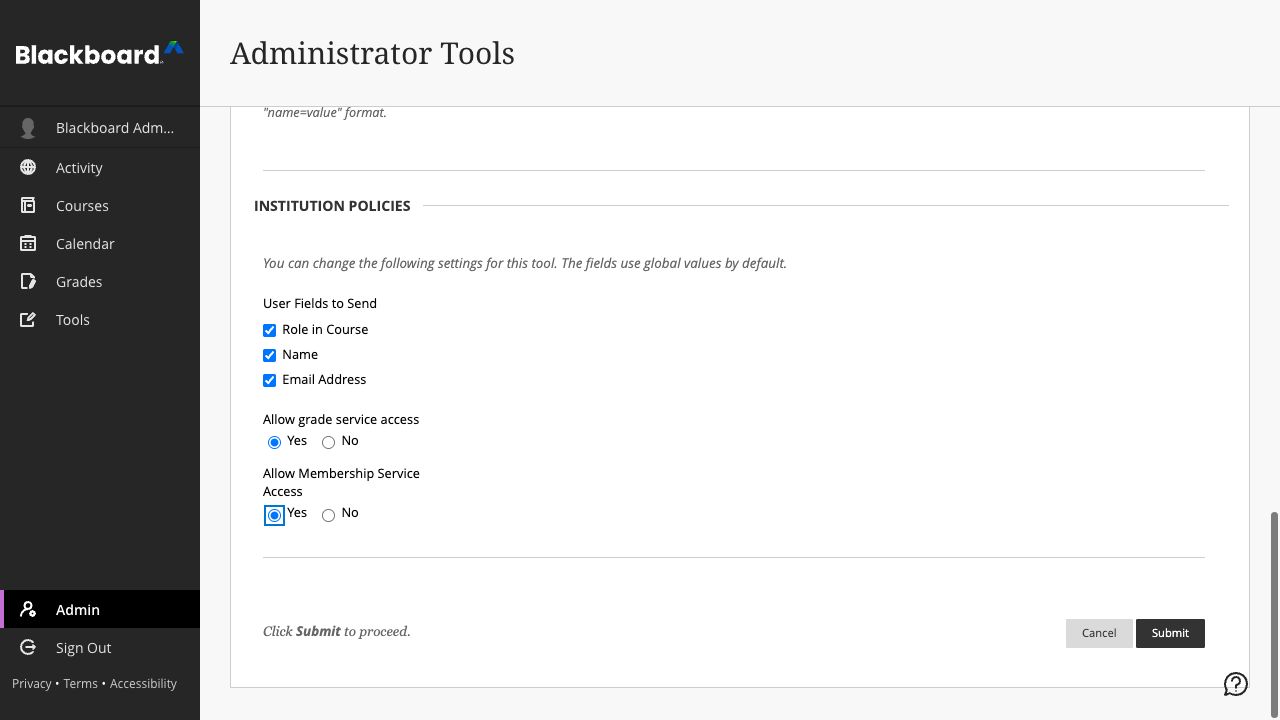
- Under user data sharing, approve the data your institution permits: Name, Email, and Role.
- Enable Allow grade service access when scores should be returned with AGS.
- Enable Allow Membership Service Access only when course-roster access is required through NRPS.
- Select Submit.
System Admin is permission-controlled
If System Admin is not visible in the main Blackboard navigation, the signed-in account does not have the system role required to install an LTI tool. An instructor cannot complete this institution-level step.
Blackboard always supplies a stable LTI subject identifier for the learner. Name and email are profile data, so approve them only when your institution's policy allows examina.io to receive them. Role is needed to distinguish an instructor workflow from a learner launch.
Open the registered tool's menu and choose Manage Deployments. Copy the Deployment ID that applies to the institution or institutional-hierarchy node where instructors will use examina.io. If your Blackboard release exposes only one deployment, the same value may appear on the tool's Edit page instead. This value belongs to this Blackboard installation and must not be copied to another institution.
Create another Blackboard deployment only when the institution intentionally needs a separate installation boundary, such as a different campus or licensed unit. Every Deployment ID needs its own examina.io registration.
After submission, the provider list should show examina.io Assessments as an approved LTI 1.3 tool. The exact data fields and number of placements depend on the permissions and placements your institution approved.

4. Finish the registration in examina.io
Return to Home → Settings → Bring Examina into your LMS:
- Continue the open form, or select Add registration → Blackboard Learn / Ultra again.
- Enter a descriptive name, such as Northbridge College Blackboard.
- Confirm the read-only Examina Application ID and paste the Blackboard Deployment ID.
- Confirm these Blackboard platform values:
| examina.io field | Blackboard value |
|---|---|
| Issuer URL | https://blackboard.com |
| Examina Application ID | The centrally supplied, read-only Application ID |
| Deployment ID | The ID copied from this Blackboard installation |
| Authorization endpoint | https://developer.blackboard.com/api/v1/gateway/oidcauth |
| Token endpoint | https://developer.blackboard.com/api/v1/gateway/oauth2/jwttoken |
| LMS public keys (JWKS) URL | https://developer.blackboard.com/.well-known/jwks.json |
- Enable Assessment selection (Deep Linking).
- Enable Grade return (AGS) when Blackboard grade service access was approved.
- Enable Course roster (NRPS) only when Blackboard Membership Service Access was approved.
- Select Save registration, then activate the registration.
The saved registration card is the source of truth for the exact tool URLs.
The production browser-facing values use https://www.examina.io:
| Blackboard tool setting | examina.io production value |
|---|---|
| OIDC login initiation | Copy the complete value from the registration card |
| LTI launch / target-link URI | https://www.examina.io/lti/launch |
| Deep Linking redirect | https://www.examina.io/lti/deep-link |
| Tool icon | https://www.examina.io/img/logo128.png |
| Tool public keys (JWKS) | Copy the registration-specific value from the registration card |
Always copy the complete OIDC and JWKS values from the registration card because they identify the saved registration. The Blackboard LMS public keys (JWKS) URL in the first table is Blackboard's key set, which examina.io reads. The tool public keys (JWKS) URL on the registration card is examina.io's key set, which Blackboard reads. Do not swap them.
Application IDs and Deployment IDs are configuration identifiers, not passwords. Never put private keys, access tokens, signed launch messages, or learner data in documentation or support tickets.
5. Confirm the Blackboard placement
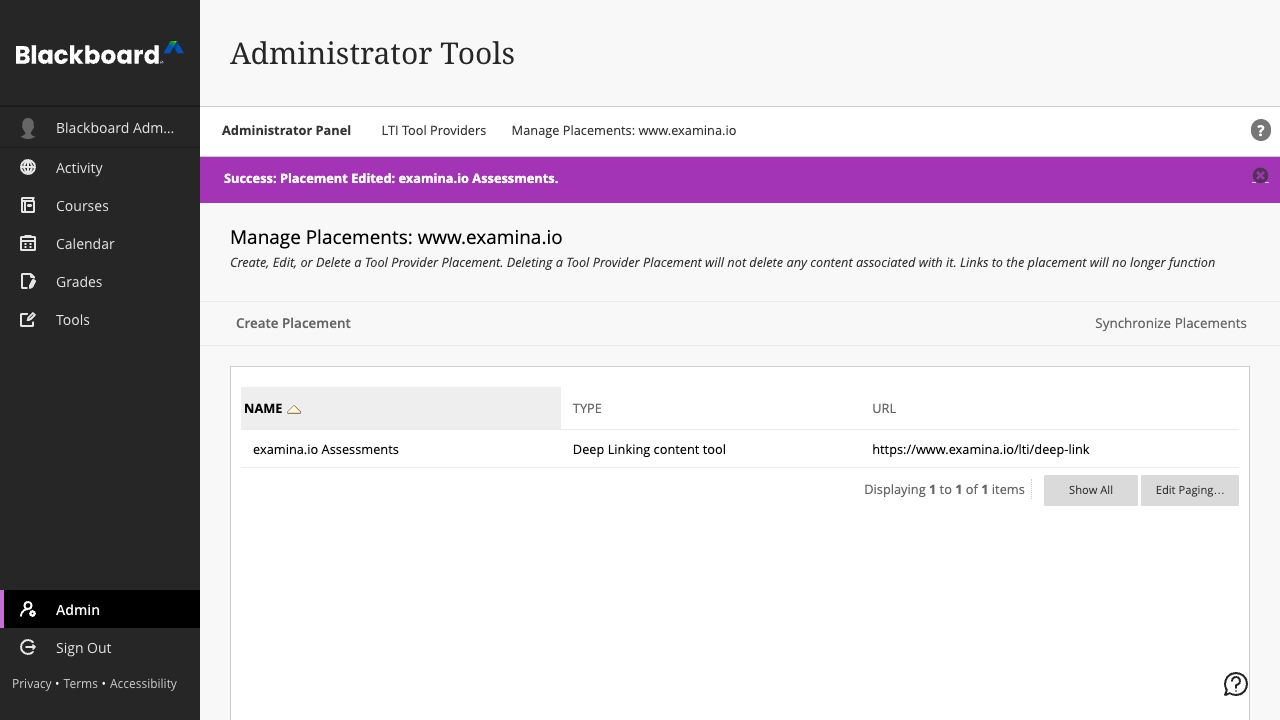
Return to LTI Tool Providers in Blackboard, open the menu for examina.io Assessments, and choose Manage Placements. Confirm that the approved managed placement:
- is available as a Deep Linking content tool;
- uses the examina.io production Deep Linking URL;
- is named examina.io Assessments; and
- displays the examina.io logo.
Do not create a second placement unless your institution intentionally needs a separate placement with different availability. A duplicate placement can make it unclear which registration an instructor is launching.
6. Add a published exam to an Ultra course
As an instructor in the destination course:
- Open CHEM 101: General Chemistry → Course Content.
- Select the + where the assessment should appear.
- Choose Content Market.
- Find examina.io Assessments under Institution Tools and select it.
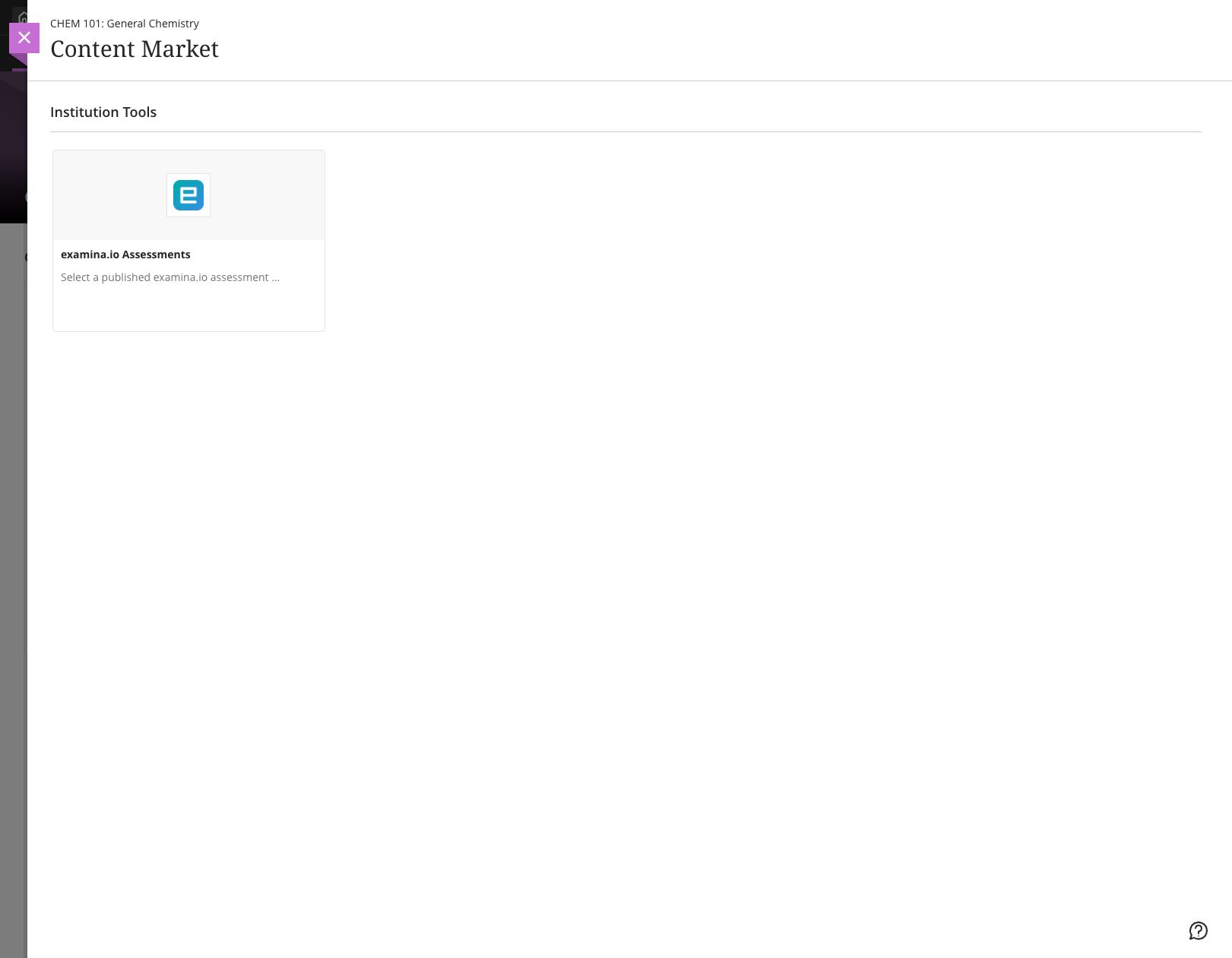
The examina.io picker opens inside Blackboard. Select General Chemistry Fundamentals, then choose Add selected exam.
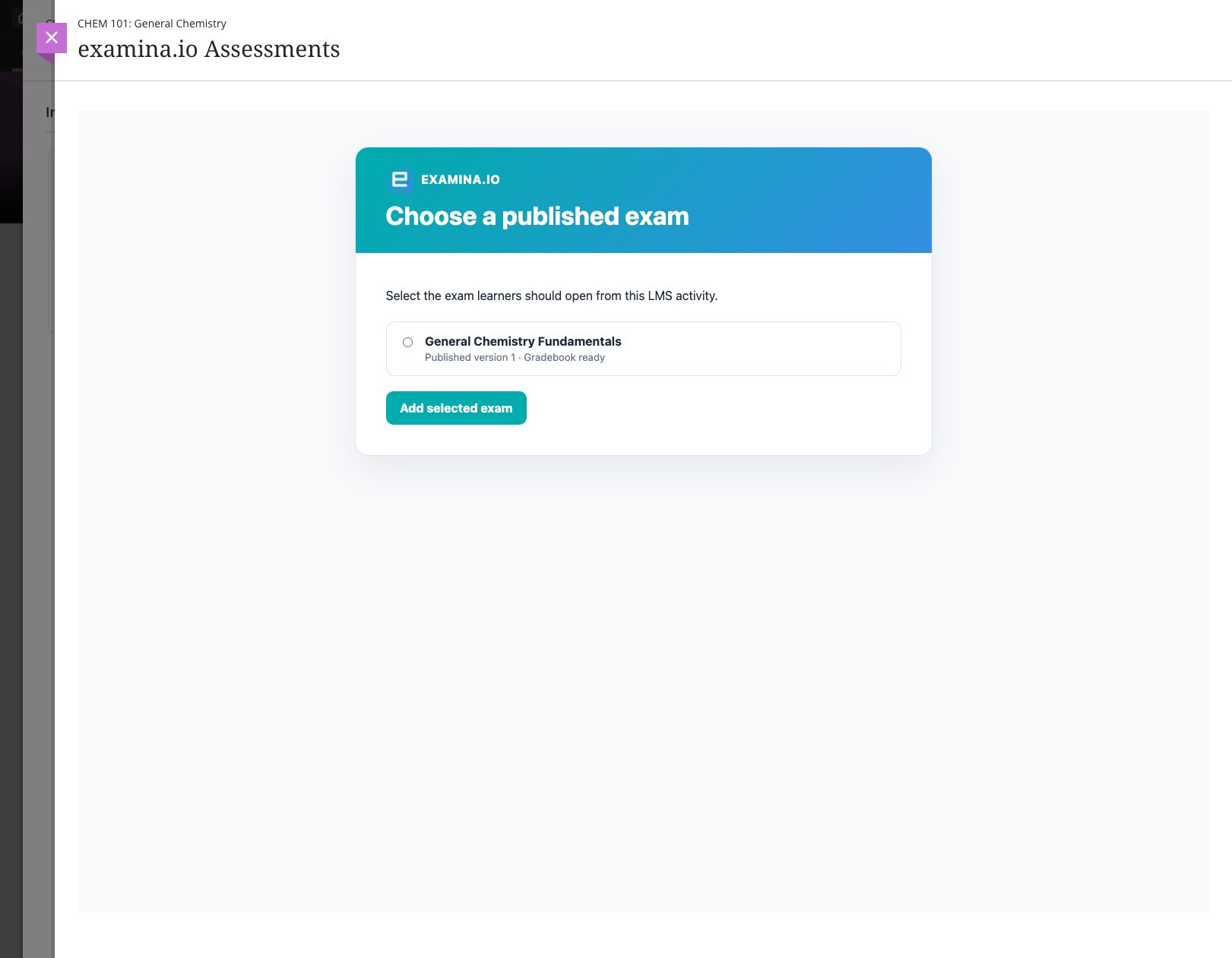
Blackboard returns to the course and creates the assessment content item. Confirm its learner-facing name, visibility, due date, maximum points, and attempt policy, then make it visible to learners.
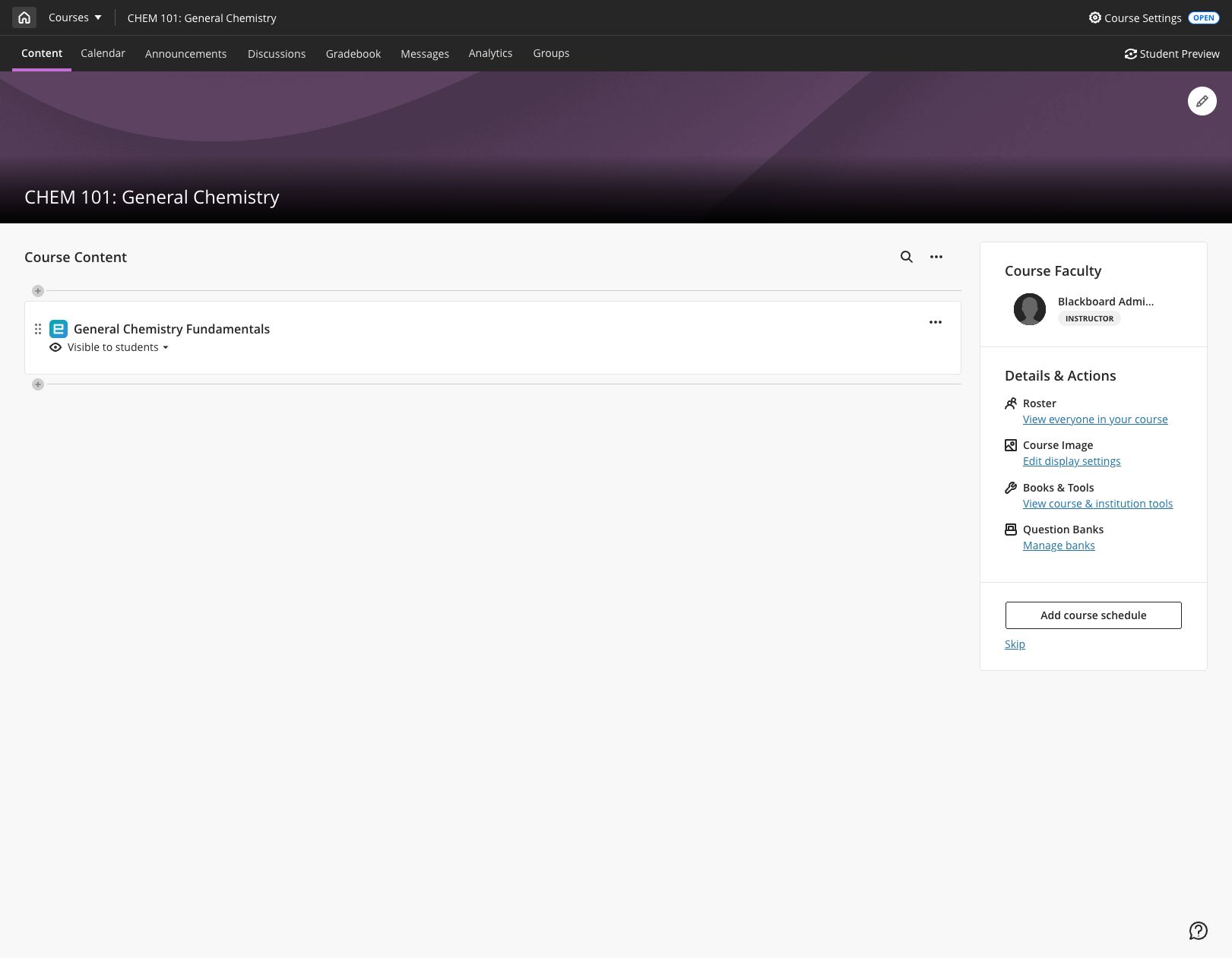
Open the item once as the instructor and confirm that the intended published exam appears. If the wrong exam was selected, remove the content item and use the Content Market to select it again.
7. Verify the learner launch
Use a fictional learner enrolled in the course:
- Sign in to Blackboard as the learner.
- Open CHEM 101: General Chemistry → Course Content → General Chemistry Fundamentals.
- Confirm that the assessment opens inside Blackboard without a second examina.io sign-in.
- Begin, complete, and submit the assessment.
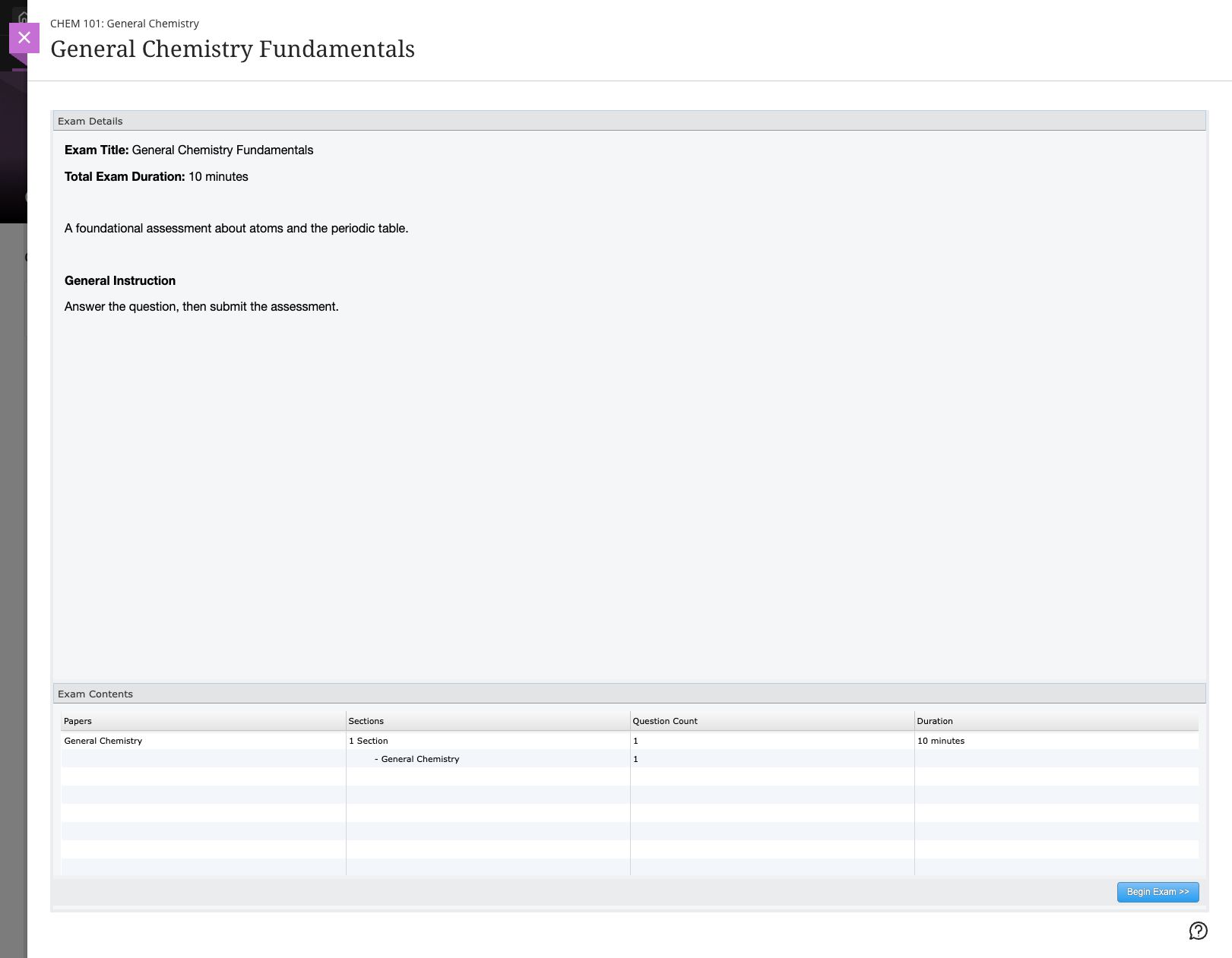
The LTI launch verifies the Blackboard platform, Deployment ID, course, content item, learner, and selected publication. A copied launch URL is not a replacement for opening the assessment from Blackboard.
8. Verify the returned grade
After submission, open Gradebook as the instructor. Confirm that the score appears for General Chemistry Fundamentals, the correct learner, and the correct gradebook item. The learner can also review the result from the course grades view.
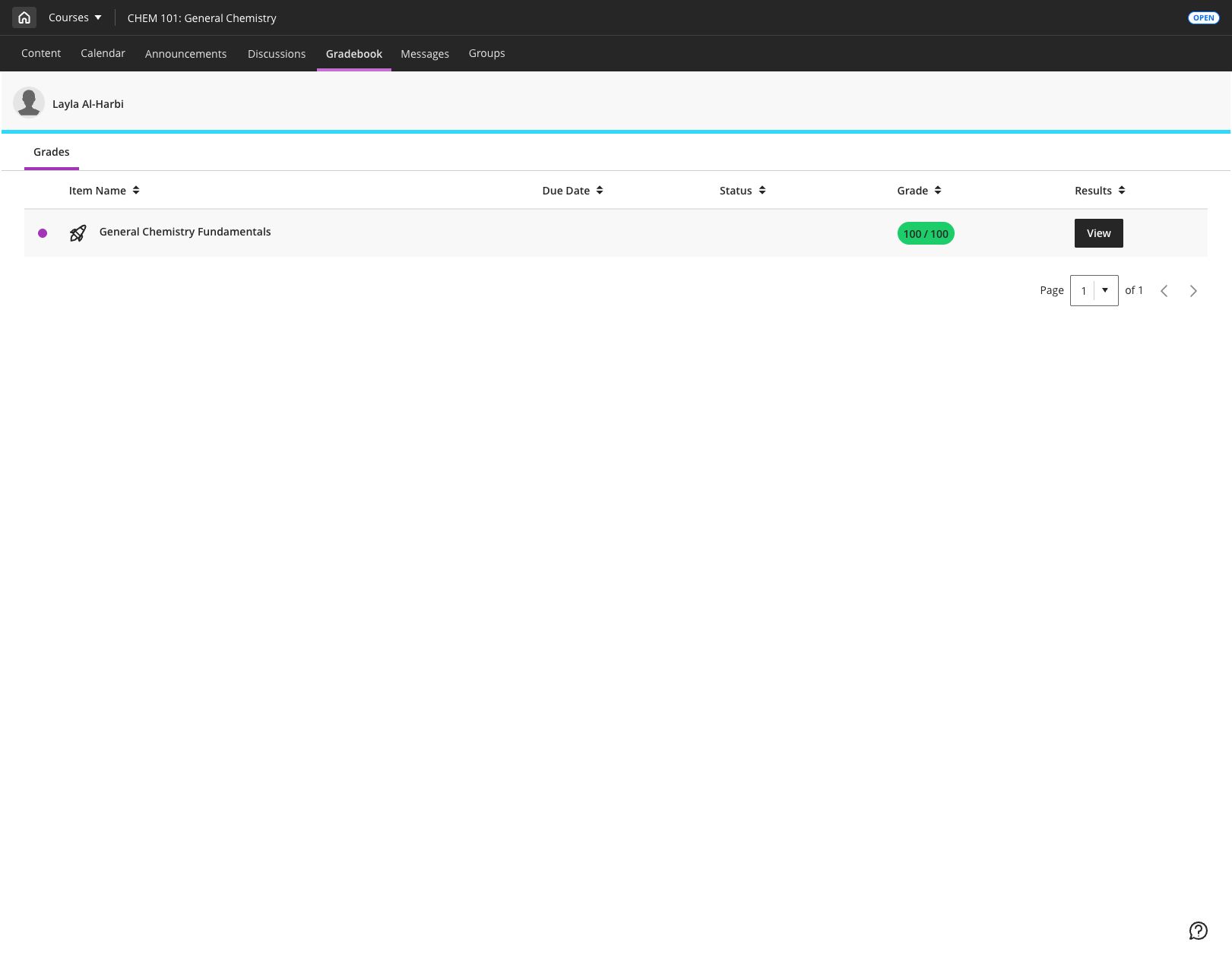
Grade delivery is queued separately from exam submission, so a temporary Blackboard outage does not turn a completed assessment into a failed submission. The score may take a short time to appear. Refresh the gradebook before investigating a missing result.
Connect another Blackboard institution
The centrally supplied examina.io Application ID can be installed in more than one Blackboard institution. For each institution:
- register the shared Application ID in that institution's Blackboard Learn;
- copy that installation's unique Deployment ID;
- create a separate Blackboard registration in the correct examina.io organization; and
- grant only that institution's approved user-data, AGS, and NRPS permissions.
Before a broad rollout, verify that each institution sees only its organization's published exams and that scores return only to the originating course, learner, and gradebook item.
Production validation checklist
Before using the integration for a live course, verify all of the following:
- The tool is Approved and available only where intended.
- examina.io Assessments appears in Content Market with the examina.io logo.
- The Application ID is the centrally supplied examina.io value.
- The Deployment ID came from this exact Blackboard installation.
- Name, Email, and Role sharing match the institution's approved data policy.
- AGS is enabled in both systems when grades should be returned.
- NRPS is enabled in both systems only when course-roster access is required.
- Deep Linking lists only published exams the instructor may select.
- A learner opens the selected assessment without a second sign-in.
- A completed score reaches the correct learner and gradebook item.
- Every browser-facing address uses production HTTPS and a trusted certificate.
Troubleshooting
| Symptom | What to check |
|---|---|
| examina.io Assessments is missing from Content Market | Confirm the tool is approved, its managed Deep Linking placement is available to this course, and the current user can add course content. |
| The Content Market tile has no examina.io logo | Confirm the managed placement uses https://www.examina.io/img/logo128.png. If the tool was installed before the icon was configured, refresh the existing tool metadata or update its placement. |
| The picker opens but Blackboard rejects the selected exam | Confirm the Application ID and Deployment ID match, Blackboard can fetch the exact registration-specific examina.io JWKS URL, and both systems have accurate clocks. |
| The assessment opens in a blank frame or the launch is refused | Check the OIDC initiation URL, launch URL, redirect URLs, trusted HTTPS certificate, registration status, iframe policy, and browser third-party-cookie settings. |
| Blackboard still opens an old address after the vendor configuration changed | Blackboard may retain the URLs imported when the tool or managed placement was created. Inspect the existing tool and placement target URLs. Refresh or update the existing registration metadata when Blackboard permits it. If the tool must be registered again, record the new Deployment ID and update the matching examina.io registration before making the replacement available. Reselect affected course content so it uses the current placement. |
| The wrong exam opens | Remove or edit the course content and select the intended published exam again. Do not copy a content item between institutions without reselecting the exam. |
| The grade does not appear | Confirm Blackboard Allow grade service access and examina.io Grade return (AGS) are enabled, the content item has points, and the registration is active. Allow time for queued delivery. |
| Course roster is unavailable | Confirm Blackboard Allow Membership Service Access and examina.io Course roster (NRPS) are enabled. Assessment launch and grade return do not require NRPS. |
| Blackboard reports a signing-key error | Confirm Blackboard uses the tool JWKS URL copied from the examina.io registration card and examina.io uses https://developer.blackboard.com/.well-known/jwks.json for Blackboard's keys. Neither endpoint should redirect to a sign-in page. |
| A second institution sees the first institution's content | Confirm each institution has its own examina.io registration and Blackboard Deployment ID. Never reuse a Deployment ID across institutions. |
For Blackboard's current platform behavior and terminology, see Anthology's official LTI application registration and administrator integration documentation.