Create questions with AI from Canvas or Moodle
Instructors can launch examina.io from a Canvas or Moodle course, build a source-backed question draft with AI, and return a published assessment to the course. The same draft can also produce a one-time Designer project or a native question-bank file for the LMS.
This guide covers the complete instructor workflow. An LMS administrator must first complete the Canvas LTI 1.3 setup or Moodle LTI 1.3 setup, including Deep Linking.
Validate in a test course first
Use fictional course material and users to validate authoring, export, publication, learner launch, and grade return before a live assessment.
The examples use a fictional Introduction to Biology (BIO 101) course and a draft named Cell Structure and Function Check.
Understand drafts and outputs
The authoring workspace keeps one canonical draft on examina.io. Generation, review, and source changes update that draft until it is published.
| Output | Purpose | Relationship to the draft |
|---|---|---|
| examina.io draft | Continue AI authoring and review | Mutable and stored on the server |
.smex |
Run the final exam | Immutable, final, and stored on the server after publication |
.smexproj |
Continue advanced editing in Designer v3 | One-time local copy; Designer saves do not update the server draft |
| Canvas QTI ZIP | Import supported questions into a Canvas classic question bank | One-time native copy |
| Moodle XML | Import supported questions into a Moodle question bank | One-time native copy |
Publishing is a boundary: it creates the immutable .smex used by learners.
Exporting a project or LMS file does not publish or change the draft.
Before you start
Confirm that:
- examina.io appears as an External Tool in the course;
- the registration has Deep Linking enabled;
- you are an instructor, course designer, or administrator allowed to add LMS activities;
- your account has room under its active-draft cap; and
- your source files are PDF, DOCX, TXT, or HTML.
DRAFT and PUBLISHING items count toward the cap. Publishing or deleting a
draft releases its slot. If the workspace reports that the cap has been
reached, finish an existing draft or ask an examina.io administrator to retire
one. Draft deletion is currently an administrative/API operation; it is not
offered inside the LMS authoring screen or Designer.
1. Open AI authoring from your LMS
Canvas
- Open the course and select Assignments.
- Create or edit an assignment, then choose External Tool as the submission type.
- Select Find, choose examina.io, and open its content picker.
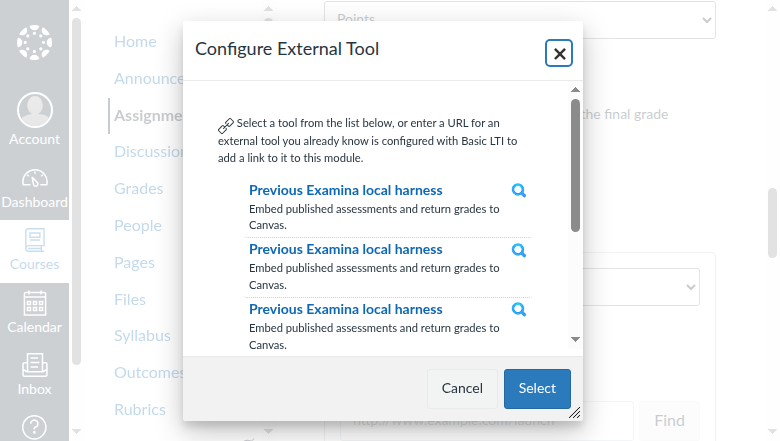
Choose Create questions with AI, enter Cell Structure and Function Check, and create the draft. If you previously started one in this course, you can open it from the course draft list instead.
Moodle
- Turn Edit mode on in the course.
- Select Add an activity or resource, then External tool.
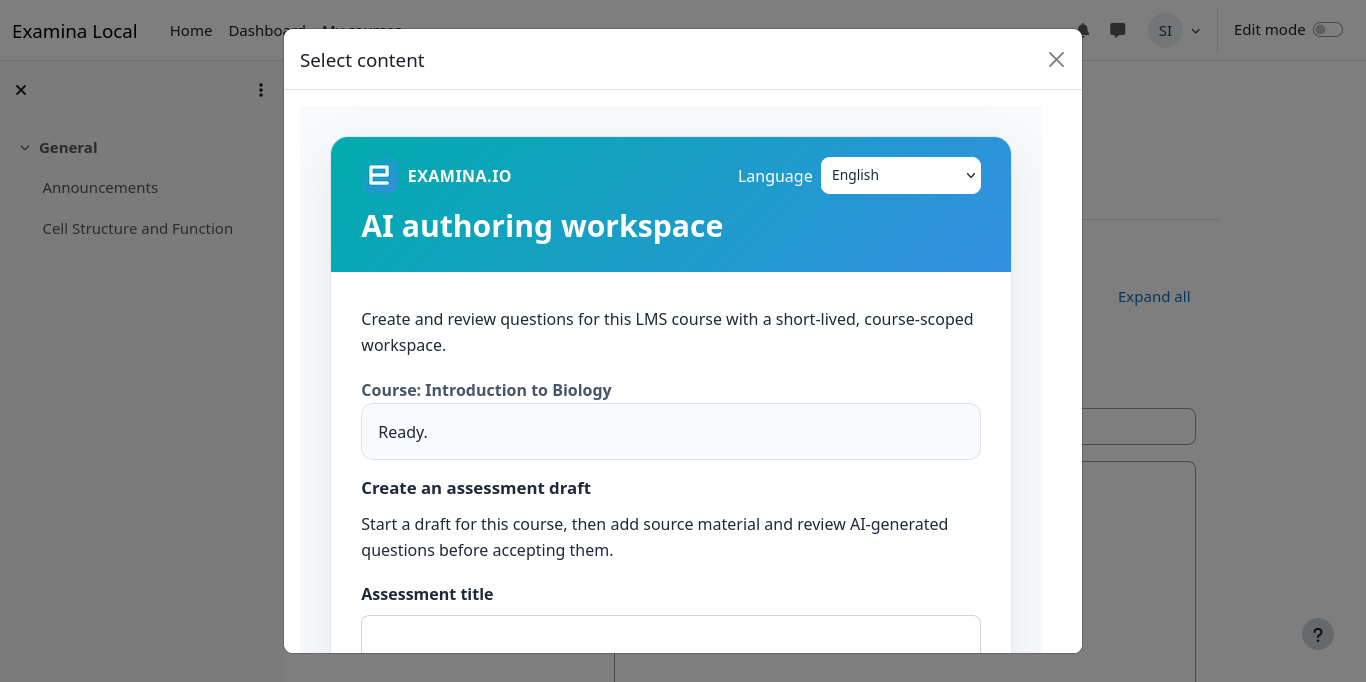
- Choose the configured examina.io tool and select Select content.
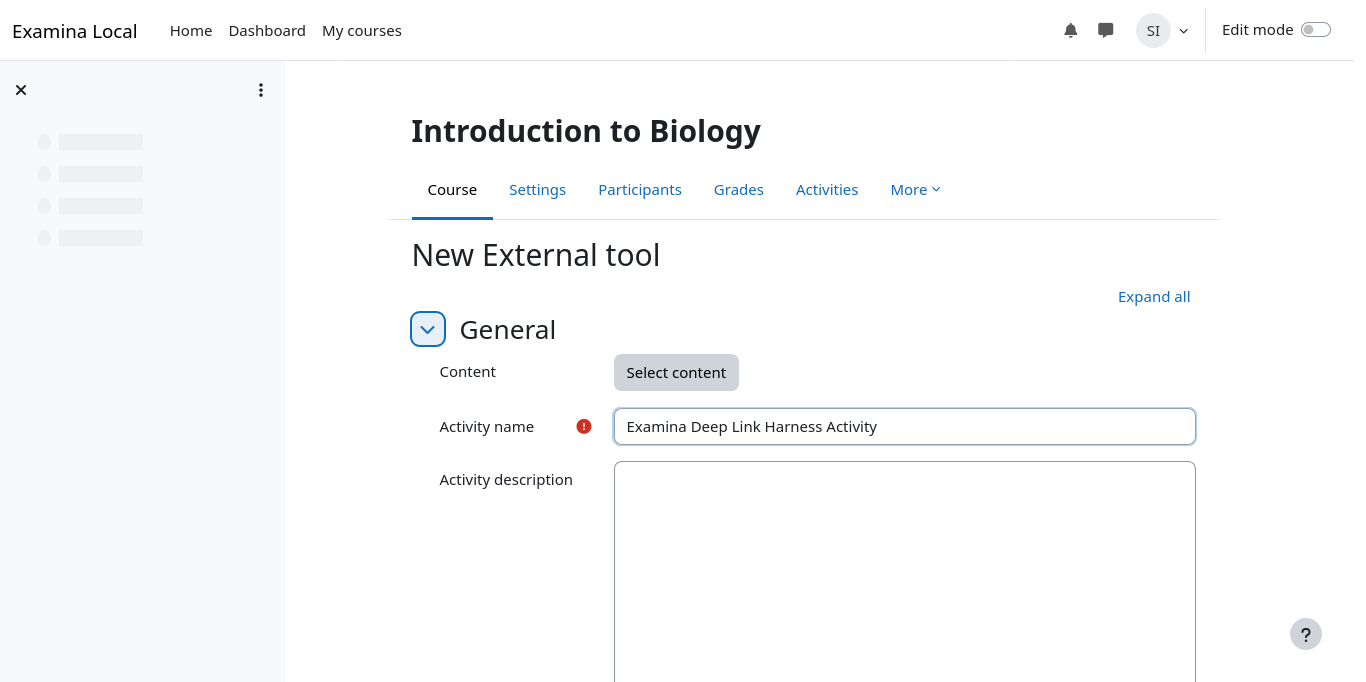
Choose Create questions with AI or reopen an existing course draft.
Change the workspace language
Use the language menu at the top of any examina.io LTI page to choose English, French, Arabic, Latin American Spanish, or Brazilian Portuguese. Arabic uses a right-to-left interface. The menu changes interface instructions and controls; it never translates uploaded passages, questions, or answers.
2. Create the draft structure
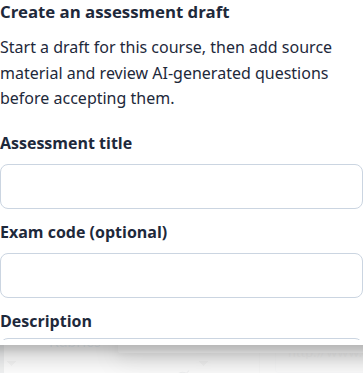
Enter a recognizable title and optional internal code. For this example use:
- Title: Cell Structure and Function Check
- Code: BIO-101-CELL
- Paper: Paper 1
- Section: Cell organelles
- Learner instruction: Answer every question using the supplied passage.
The workspace separates sources and questions into two columns on wider screens and stacks them on smaller screens.
3. Add one or more source files
Select Add passages and files, then either drag several files into the upload area or choose them with the file picker. The selected files are shown together before upload so you can remove an accidental selection.
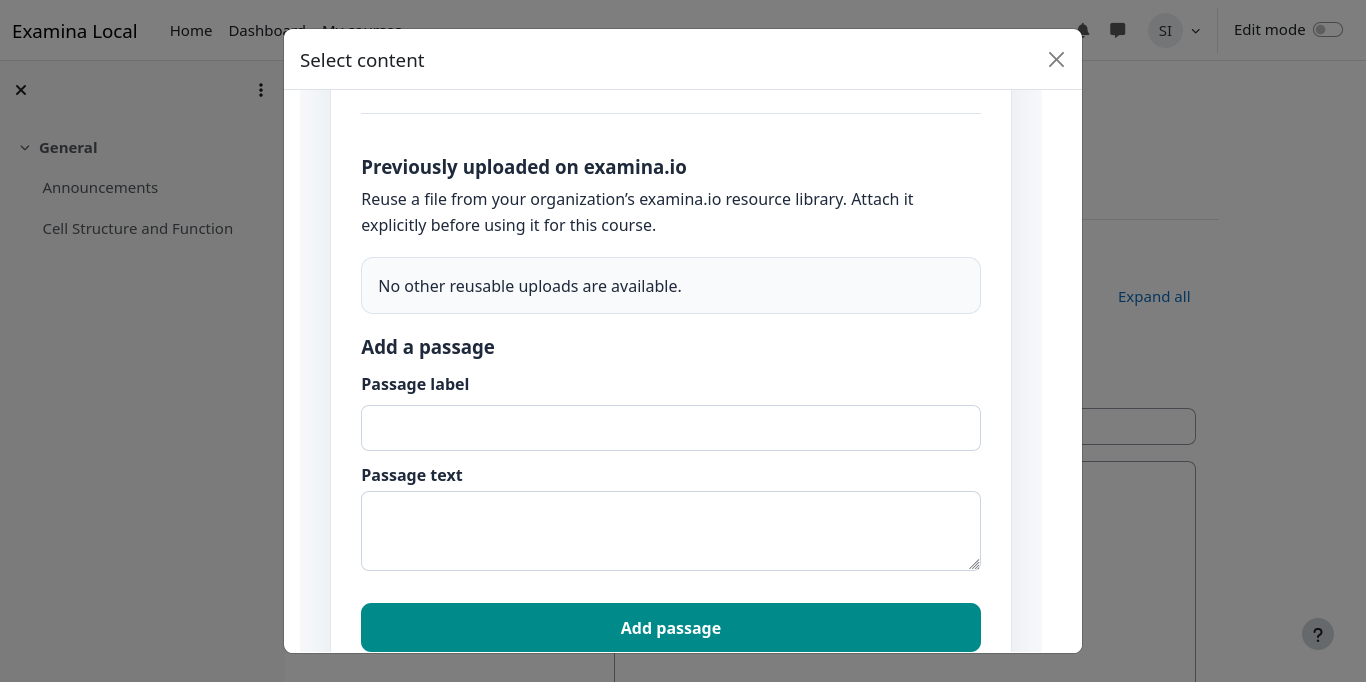
For a quick example, upload a short passage that explains:
Chloroplasts capture light energy to make sugars, while mitochondria release usable energy from those sugars. Plant cells contain both organelles.
Only use material that your institution is authorized to process. Verify that every file finishes processing before generating questions. A previously uploaded source remains attached to the server draft when you reopen it from Canvas or Moodle.
4. Generate questions
Select Generate questions with AI, then choose the destination paper and section. examina.io currently generates:
- single-select questions;
- multiple-select questions; and
- fill-in-the-blank questions.
For the example, create two medium single-select questions worth 2 points each, then create one medium multiple-select question. Set the topic to Cell organelles and the learning outcome to Distinguish energy capture from energy release in plant cells.
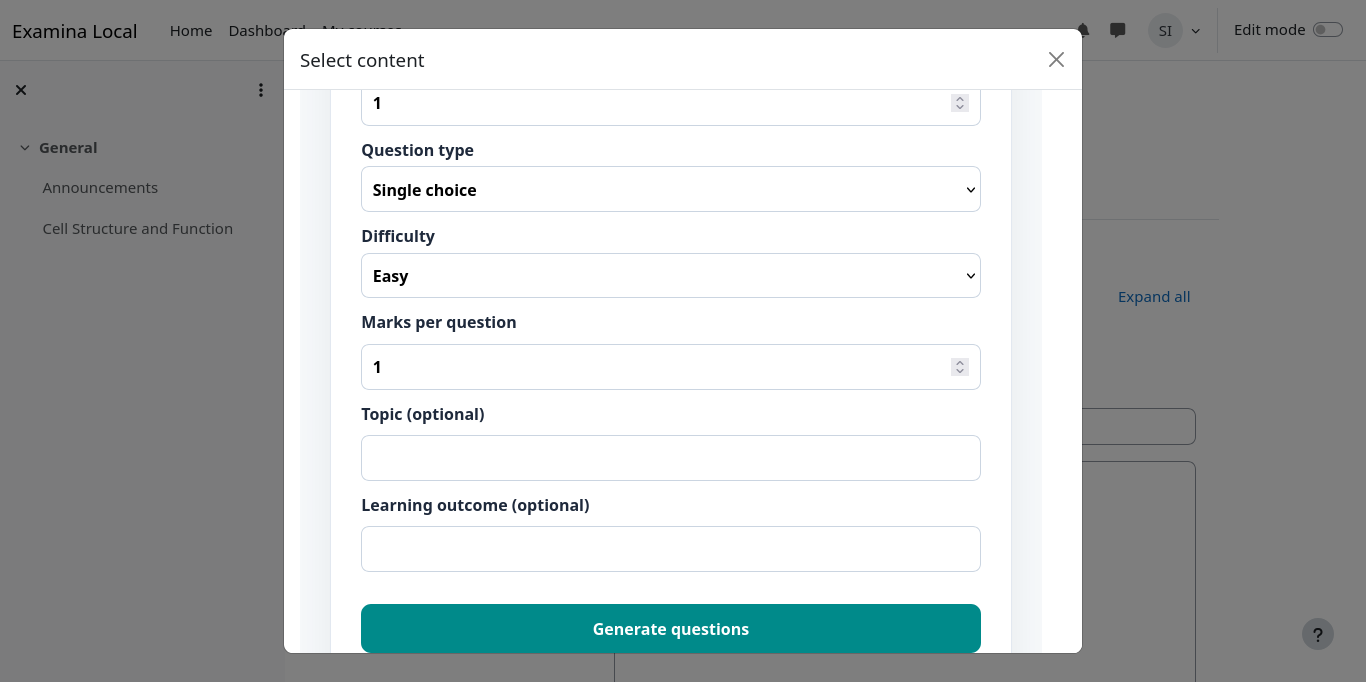
AI output can be incorrect or unsuitable. An instructor remains responsible for checking accuracy, answer keys, ambiguity, difficulty, accessibility, copyright, and alignment with the intended learning outcome.
5. Review the generated candidates
Review every candidate against its source. Keep acceptable questions and reject poor ones. The focused LMS workspace lets you select questions and adjust the question title and learner instruction; it is not a full question stem and answer editor.
When substantial editing is required, either reject and regenerate the candidate or download a Designer project for advanced local editing. A project opened in Designer is a revision-pinned copy: saving it does not write changes back to the canonical examina.io draft.
6. Choose what to do with the draft
Open the draft actions when review is complete.
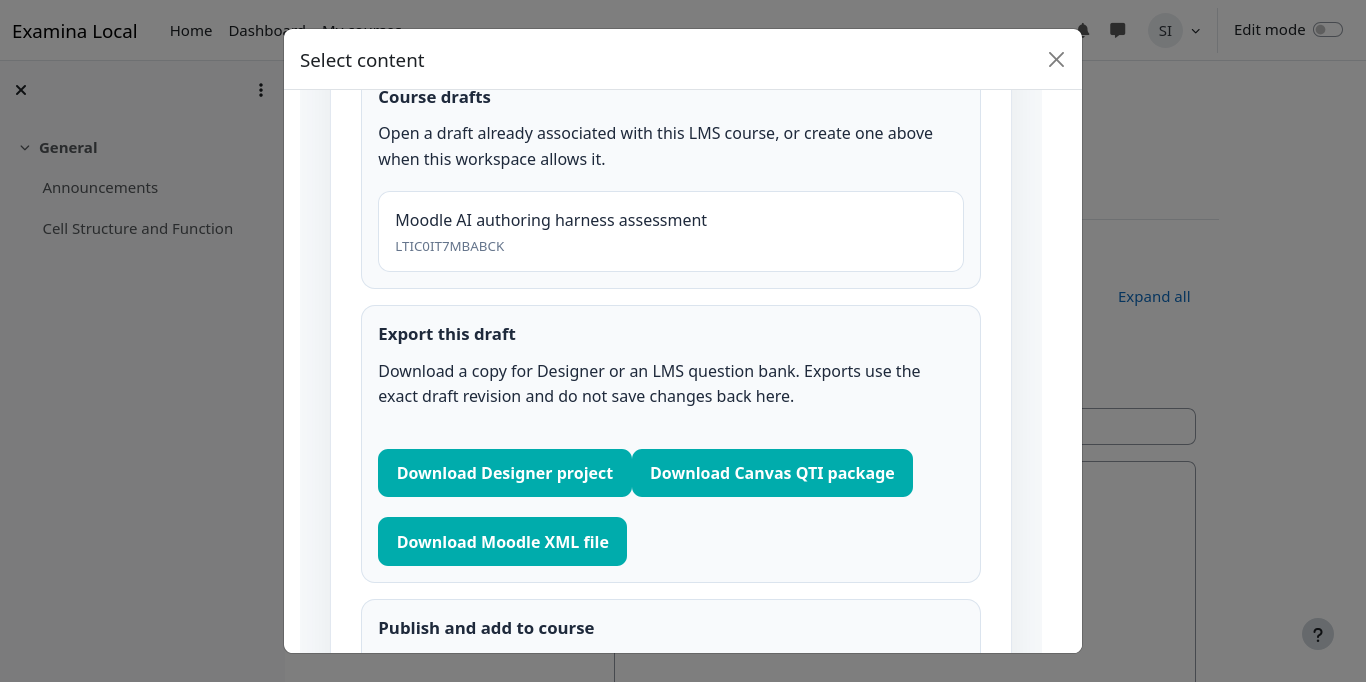
You can:
- download a
.smexprojfile for Designer v3; - download a Canvas QTI ZIP;
- download a Moodle XML file; or
- publish the assessment and return it to the course.
These actions are independent. For example, you can import a native question copy for reuse and later return to the canonical draft to publish it.
7. Import a native Canvas question copy
Canvas export maps compatible single-select, multiple-select, and fill-in-the-blank questions to QTI. It is a manual, one-way export.
- Select Download Canvas QTI package.
- In Canvas, open Settings → Import Course Content.
- Choose QTI .zip file, select the download, and run the import.
- Open the classic question bank and preview every imported question.
The current export targets Canvas classic question banks. It does not claim direct push or certification for New Quizzes. Canvas changes do not sync back to examina.io.
8. Import a native Moodle question copy
Moodle XML supports the same basic question families, but Moodle's multiple-select scoring does not always preserve the draft's exact-set scoring. When a conflict exists, examina.io asks you to choose a policy for that export.
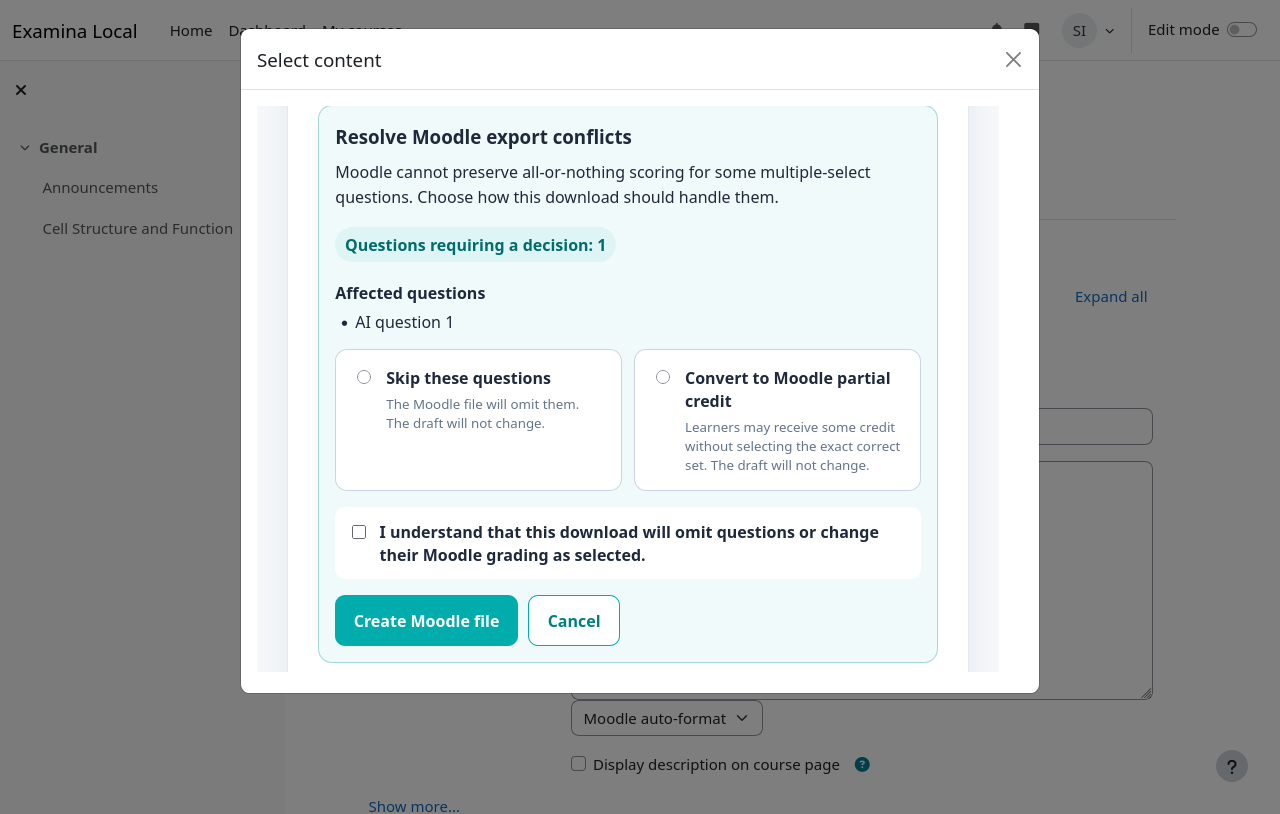
- Skip affected questions preserves examina.io scoring because conflicting questions are omitted from the XML.
- Convert to Moodle partial credit assigns a total of +100% across correct choices and -100% across distractors. The imported question can therefore award partial credit and does not have identical scoring semantics.
If a question already uses canonical partial scoring, choose Skip affected questions. Confirm the one-time-copy acknowledgement before downloading. Your choice applies only to that export and never changes the server draft.
Then import the file:
- Open the Moodle course Question bank.
- Select Import and choose Moodle XML format.
- Upload the downloaded XML file.
- Preview every imported question, answer, grade, and penalty.
9. Publish and add the assessment to the course
Return to the canonical draft and select Publish and add to course. Review
the publication acknowledgement carefully. Publishing creates and persists the
final immutable .smex; later draft or LMS-native changes cannot alter it.
After examina.io returns the Deep Link:
- in Canvas, finish the assignment settings and select Save or Save & Publish; or
- in Moodle, finish the activity settings and select Save and display.
Use a fictional learner to launch the activity, submit it, and confirm that the expected result reaches the LMS gradebook when AGS is enabled.
Reopen a draft in Designer
Designer v3 can choose File → Open from examina.io drafts, search the draft
table, and select a draft to open. Designer converts the chosen draft revision
into a local .smexproj. It does not save changes back to examina.io and is not
a replacement for publishing the canonical draft.
Troubleshooting
The AI-authoring choice is missing
Confirm that the LTI registration enables Deep Linking and that the instructor launched the content-selection placement, not a learner resource link. The Canvas or Moodle administrator may also need to update the installed tool.
A source does not appear after upload
Confirm the file is PDF, DOCX, TXT, or HTML, then wait for processing to finish. Reopen the same course draft before uploading a duplicate.
The Moodle export omits a multiple-select question
The selected policy was Skip affected questions, or the question uses a scoring mode Moodle XML cannot preserve. Re-export with partial credit only if the scoring difference is acceptable and has been reviewed.
The Designer copy differs from the server draft
This is expected after either copy changes. .smexproj is a one-way snapshot;
Designer does not synchronize edits to the canonical draft.
Publication is unavailable
Resolve incomplete processing or question validation first. If the account has reached a plan or draft limit, contact its examina.io administrator.
Instructor validation checklist
- [ ] The correct course and draft are shown.
- [ ] Every source is authorized and fully processed.
- [ ] Every generated stem, option, answer, and point value was reviewed.
- [ ] Any Moodle multiple-select scoring difference was explicitly accepted.
- [ ] Native imports were previewed in the LMS question bank.
- [ ] The final publication acknowledgement was reviewed.
- [ ] A fictional learner launch and grade return succeeded.