Configure Circles and permissions
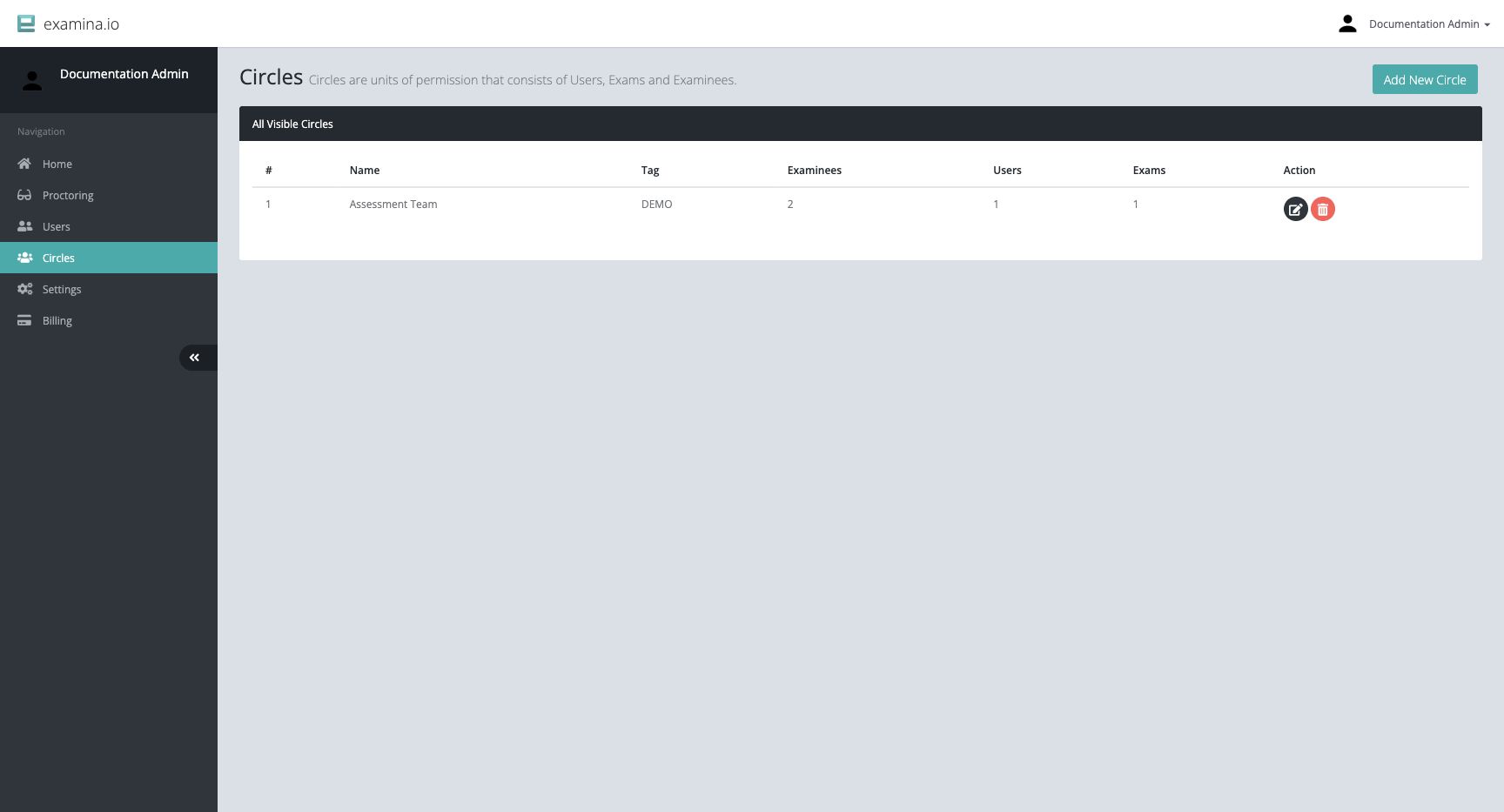
A Circle is a permission boundary made from selected Users, Exams, and Examinees. A User can work with the resources made available through the Circle, subject to the User's account role.
Plan the Circle
Use a Circle for a stable area of responsibility, such as:
- a course or department;
- an exam program;
- a customer or tenant;
- a school location; or
- a restricted assessment project.
Choose a clear name and a short tag, for example Biology 201 and BIO-201. Avoid putting confidential candidate information in the Circle name.
Create a Circle
- Open Home → Circles.
- Select Add New Circle.
- Enter a unique name and optional tag.
- Select the Users who need access.
- Select the Exams they will administer or proctor.
- Select the Examinees they need to view or manage.
- Save the Circle.
Root and Administrator accounts can create and edit Circles. Other authorized Users can see the Circles relevant to them.
Verify the boundary
The Circles table shows a count of Examinees, Users, and Exams in each Circle. After saving:
- compare each count with your intended membership;
- edit the Circle and spot-check names in all three lists;
- test with a Regular or Invigilator account;
- verify that an unrelated exam and examinee are not visible; and
- verify that required Proctor workspaces appear for invigilators.
Circles compared with Groups
| Circle | Group |
|---|---|
| Controls staff access | Organizes examinees for bulk operations |
| Contains Users, Exams, and Examinees | Contains Examinees |
| Used across Home, Manager, and Proctor permission checks | Used in Manager for assignment work |
It is common to use both. A course Circle can restrict the course team, while a Group can contain the students mapped to a particular sitting.
Maintain Circles safely
- Update membership when staff responsibilities change.
- Remove completed exams and stale examinee access according to policy.
- Keep administrator-only resources out of broad Circles.
- Review Circle membership before enabling live proctoring.
- Test permission changes with a non-administrator account.
Deleting a Circle removes the permission grouping. Confirm the impact on staff access before deleting it.