Organization settings and branding
Root and Administrator accounts can open Home → Settings to manage organization-wide branding, embed domains, API credentials, webhook delivery, and supported learning-platform connections.
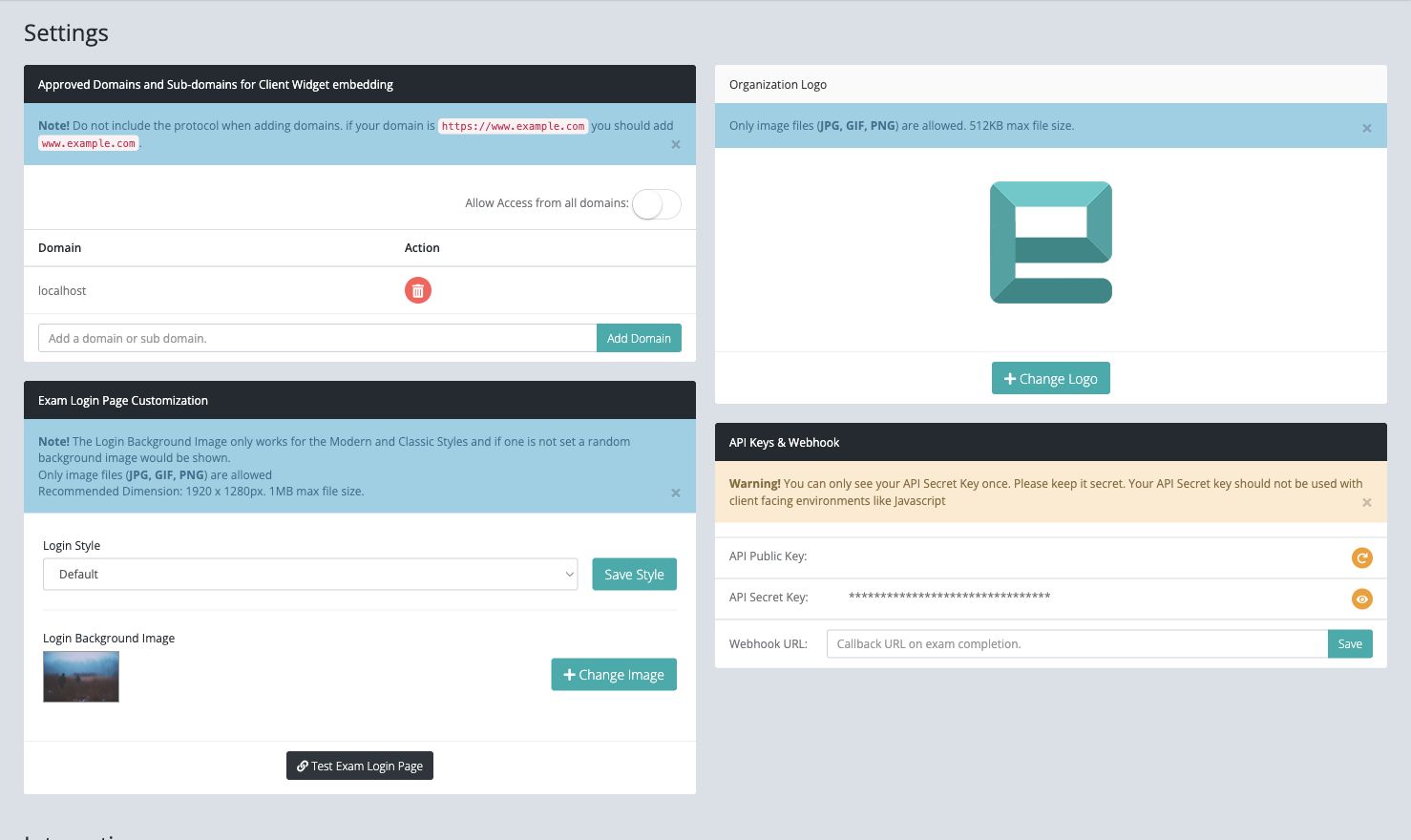
Approved embed domains
The domain allowlist controls which sites may load the Client widget.
- Enter only the hostname, without http:// or https://.
- Select Add Domain.
- Remove domains that are no longer used.
For example, enter assessment.example.edu, not https://assessment.example.edu/exams.
Avoid Allow All Domains in production. If you add localhost or another development host, remove it after testing because it is not exclusive to your organization.
See Embed the Client app.
Organization logo
The Logo Customization panel controls the logo shown in supported organization-facing and examinee-facing views. Select Upload New Logo and choose a JPG, GIF, or PNG file up to 512 KB.
Use a high-contrast logo with transparent or neutral padding, then verify it on both desktop and mobile-sized screens.
Exam login page
In the Client Experience panel, set Exam Login View to Default, Modern, or Classic. Modern and Classic can use an organization background image. If none is provided, Client can show a supplied background.
- Choose a login view and select Save Style.
- Select Change Image to upload a JPG, GIF, or PNG background.
- Use a 1920 × 1280 pixel image when possible and keep it within the displayed size limit.
- Select Test Exam Login Page and check readability, logo placement, and mobile behavior.
See Customize the exam login page.
API keys
The API Public Key can identify approved browser integrations such as the Client widget. The API Secret Key authenticates server-to-server requests and must never be included in browser JavaScript, public source code, a mobile application, or documentation screenshots.
The secret is displayed only once when it is created. Store it immediately in an approved secret manager. Regenerating a key can break existing integrations until every consumer is updated.
Completion webhook
Enter an HTTPS callback URL to receive a notification when an exam is completed. The endpoint should validate requests according to the current API contract, return a successful response promptly, and process lengthy work asynchronously.
Do not use a private administrative page or a URL containing credentials as the webhook URL.
Learning-platform integrations
Settings can show learning-platform connectors and LTI 1.3 registrations. Availability and setup requirements depend on your plan and the external platform configuration. For complete setup and validation flows, see Integrate examina.io with Moodle and Integrate examina.io with Canvas, or Integrate examina.io with Blackboard Learn Ultra.
Use a dedicated integration account where appropriate, grant only required permissions, document the owner, and disconnect integrations that are no longer used.
Change-control checklist
After changing organization settings:
- test the login page with a designated exam;
- test every production embed domain;
- verify API consumers if a key changed;
- send a test event through your webhook workflow when available; and
- record the change and rollback plan for high-stakes environments.